
Part of Exchange Folder Agent
The Exchange Folder Agent supports two APIs for Exchange Online:
-
Microsoft Graph is the recommended API for contact folders in user and shared mailboxes.
-
Exchange Web Services (EWS) is the legacy API and is required for Exchange Online public folders because Microsoft Graph does not expose public-folder contacts. Microsoft plans to disable EWS in Exchange Online between 1 October 2026 and 1 April 2027. Move required public-folder contacts into a user or shared mailbox before EWS is disabled.
Follow only one configuration path. For contacts in an Exchange Online user or shared mailbox, follow the Microsoft Graph section and skip the EWS section. Follow the EWS section only for Exchange Online public folders that have not yet been migrated.
Create a dedicated Entra ID application with client-secret or certificate authentication as explained in Microsoft Entra ID App (client secret) or Microsoft Entra ID App Certificate. Do not reuse an application that has unrelated broad permissions. For certificate authentication, create the action account in PeopleSync first, download its public key, and upload that public key to the same Entra app registration.
Microsoft Graph for user and shared mailbox contact folders
Microsoft Graph uses app-only authentication: PeopleSync signs in as the Entra application rather than as an individual user. Exchange Online Application RBAC grants this application the read-only contacts permission only for an approved set of mailboxes.
Delegated Contacts.Read, which depends on a signed-in user, is not sufficient.
Do not also grant the tenant-wide Microsoft Graph application permission Contacts.Read. Entra application permissions and Exchange Online RBAC assignments are additive, so a tenant-wide grant bypasses the mailbox scope.
Responsibilities
|
Administrator |
Responsibility |
|---|---|
|
Microsoft 365 / Exchange Online administrator |
Create or approve the Entra application, confirm administrative roles, choose the mailbox-scoping attribute, and configure and test Application RBAC. |
|
PeopleSync administrator |
Create the action account, configure the Exchange Folder Agent, run it, and verify the synchronized contacts. |
Before you begin
Make sure that:
-
A dedicated Entra ID application and a client secret or PeopleSync-generated certificate have been created as explained in Microsoft Entra ID App (client secret) or Microsoft Entra ID App Certificate.
-
The Exchange Online PowerShell module is installed on the computer where the commands will run.
-
The administrator has an active Exchange Administrator role and Exchange Online Organization Management membership, or an equivalent unrestricted delegating role assignment. If unsure, ask an authorized Microsoft 365 administrator to perform the permission configuration. If the role is eligible through Privileged Identity Management (PIM), activate it before connecting and then reconnect Exchange Online PowerShell.
-
You know every mailbox PeopleSync may access.
-
You have selected an existing mailbox that PeopleSync must not access. This mailbox is used to test that the scope denies access.
-
The Exchange administrator has confirmed which of
CustomAttribute1throughCustomAttribute15is available for PeopleSync. The example below usesCustomAttribute1.
Configure mailbox permissions
The commands below are examples. Replace all placeholders, mailbox addresses, names, and the custom attribute with approved customer values. Run the PowerShell blocks in order in the same PowerShell window; variables defined in step 2 are required by the later commands. Run New-ServicePrincipal, New-ManagementScope, and New-ManagementRoleAssignment only once for a given application, scope, and assignment.
1. Open PowerShell and connect to Exchange Online.
Run the commands in PowerShell on a computer where the Exchange Online PowerShell module is installed. The first command should list the installed module. If it returns nothing, install the module by following Microsoft's Exchange Online PowerShell documentation before continuing.
Get-Module ExchangeOnlineManagement -ListAvailable
Connect-ExchangeOnline
Sign in as the administrator who has the required Exchange permissions. Keep this PowerShell window open until all steps are complete.
2. Find the application identifiers and enter the example values.
-
Open the Microsoft Entra admin center and go to Identity > Applications > App registrations.
-
Select the app registration used by the Exchange Folder Agent.
-
On the app registration's Overview page, copy the Application (client) ID. Use this value for
$applicationId. Do not copy the Object ID from this page. -
Go to Identity > Applications > Enterprise applications > All applications.
-
Select the enterprise application that corresponds to the same app registration.
-
On the enterprise application's Overview page, confirm that its Application ID matches the Application (client) ID copied above. Then copy its Object ID and use this value for
$entraServicePrincipalObjectId.
$applicationId = "<application-client-id>"
$entraServicePrincipalObjectId = "<enterprise-application-object-id>"
$allowedMailbox = "contacts-sales@contoso.com"
$excludedMailbox = "executive@contoso.com"
$scopeName = "PeopleSync-Mailboxes"
$assignmentName = "PeopleSync-Contacts.Read"
|
PowerShell variable |
Value |
|---|---|
|
|
Application (client) ID from App registrations |
|
|
Object ID from Enterprise applications |
|
|
An existing mailbox PeopleSync must be able to access |
|
|
An existing mailbox that must remain outside the PeopleSync scope |
3. Add every permitted mailbox to the scope.
This example uses CustomAttribute1 with the value PeopleSync. Check its current value before changing it:
Get-Mailbox -Identity $allowedMailbox |
    Format-List DisplayName,PrimarySmtpAddress,CustomAttribute1
Set-Mailbox replaces the current value of the selected custom attribute. If the attribute is already used, stop and ask the Exchange administrator to choose another available attribute. Use the same attribute and value for every permitted mailbox and in the management-scope filter.
Set-Mailbox `
    -Identity $allowedMailbox `
    -CustomAttribute1 "PeopleSync"
Repeat the Set-Mailbox command for every mailbox PeopleSync is allowed to access. Do not set this value on $excludedMailbox.
4. Register the existing Entra service principal in Exchange Online.
New-ServicePrincipal `
    -AppId $applicationId `
    -ObjectId $entraServicePrincipalObjectId `
    -DisplayName "PeopleSync Exchange Folder Agent"
Run New-ServicePrincipal only once for this application. Then retrieve the Exchange Online service principal:
$exchangeServicePrincipal = Get-ServicePrincipal -Identity $applicationId
$exchangeServicePrincipal |
    Format-List DisplayName,AppId,ObjectId

$exchangeServicePrincipalObjectId = $exchangeServicePrincipal.ObjectId
Verify: AppId must equal $applicationId, and ObjectId must contain a value. The returned Exchange Online Object ID is stored in $exchangeServicePrincipalObjectId for the remaining commands.
5. Create and verify the mailbox scope.
New-ManagementScope `
    -Name $scopeName `
    -RecipientRestrictionFilter "CustomAttribute1 -eq 'PeopleSync'"

$scope = Get-ManagementScope -Identity $scopeName
$scope |
    Format-List Name,RecipientFilter,ScopeRestrictionType

Get-Recipient `
    -RecipientPreviewFilter $scope.RecipientFilter `
    -ResultSize Unlimited |
    Format-Table DisplayName,PrimarySmtpAddress
Verify all of the following before continuing:
-
Name is
PeopleSync-Mailboxes, or the approved value assigned to$scopeName. -
RecipientFilter contains the intended custom attribute and value.
-
The scope is recipient-based.
-
Every mailbox PeopleSync may access appears in the recipient preview.
-
No unauthorized mailbox, including
$excludedMailbox, appears in the recipient preview.
Do not create the role assignment if the recipient preview is too broad. Correct the mailbox attributes or scope filter first.
6. Assign and verify the read-only contacts role.
New-ManagementRoleAssignment `
    -Name $assignmentName `
    -Role "Application Contacts.Read" `
    -App $exchangeServicePrincipalObjectId `
    -CustomResourceScope $scopeName

Get-ManagementRoleAssignment `
    -RoleAssignee $exchangeServicePrincipalObjectId |
    Format-Table Name,Role,CustomResourceScope
Verify: The output contains the assignment name, the role Application Contacts.Read, and the intended custom resource scope. If the command reports insufficient permissions, reconnect after activating the required administrator role or ask an authorized Exchange administrator to perform this step.
7. Test an allowed mailbox and a mailbox outside the scope.
Test-ServicePrincipalAuthorization `
    -Identity $exchangeServicePrincipalObjectId `
    -Resource $allowedMailbox

Test-ServicePrincipalAuthorization `
    -Identity $exchangeServicePrincipalObjectId `
    -Resource $excludedMailbox
Expected results:
-
The allowed mailbox returns
Application Contacts.ReadwithInScope=True. -
The excluded mailbox returns
Application Contacts.ReadwithInScope=False. -
No output means that the application has no RBAC role assignment.
If the excluded mailbox returns InScope=True, stop. The scope is broader than intended. Review the custom attributes, scope filter, tenant-wide Entra permissions, and other Exchange role assignments before running PeopleSync.
Microsoft Graph authorization caching can take approximately 30 minutes to 2 hours after a permission change, although Test-ServicePrincipalAuthorization reflects the change immediately.
Complete PowerShell example
The complete example is shown below for convenient copying. Adapt all values and review the individual steps, warnings, and expected results above before running it in PowerShell. Commands marked “run once” return an error if the corresponding object already exists; reuse and verify the existing object instead of creating a duplicate.
# Verify that the Exchange Online PowerShell module is installed
Get-Module ExchangeOnlineManagement -ListAvailable

# Connect to Exchange Online and keep this PowerShell window open
Connect-ExchangeOnline

# Replace these example values with approved customer values
$applicationId = "<application-client-id>"
$entraServicePrincipalObjectId = "<enterprise-application-object-id>"
$allowedMailbox = "contacts-sales@contoso.com"
$excludedMailbox = "executive@contoso.com"
$scopeName = "PeopleSync-Mailboxes"
$assignmentName = "PeopleSync-Contacts.Read"

# Check the custom attribute before changing it
Get-Mailbox -Identity $allowedMailbox |
    Format-List DisplayName,PrimarySmtpAddress,CustomAttribute1

# Add an approved mailbox to the scope; repeat for each approved mailbox
Set-Mailbox `
    -Identity $allowedMailbox `
    -CustomAttribute1 "PeopleSync"

# Register the Entra service principal in Exchange Online; run once
New-ServicePrincipal `
    -AppId $applicationId `
    -ObjectId $entraServicePrincipalObjectId `
    -DisplayName "PeopleSync Exchange Folder Agent"

# Retrieve the Exchange Online service principal Object ID
$exchangeServicePrincipal = Get-ServicePrincipal -Identity $applicationId
$exchangeServicePrincipal |
    Format-List DisplayName,AppId,ObjectId
$exchangeServicePrincipalObjectId = $exchangeServicePrincipal.ObjectId

# Create the mailbox scope; run once
New-ManagementScope `
    -Name $scopeName `
    -RecipientRestrictionFilter "CustomAttribute1 -eq 'PeopleSync'"

# Verify the scope definition and preview every matching recipient
$scope = Get-ManagementScope -Identity $scopeName
$scope |
    Format-List Name,RecipientFilter,ScopeRestrictionType
Get-Recipient `
    -RecipientPreviewFilter $scope.RecipientFilter `
    -ResultSize Unlimited |
    Format-Table DisplayName,PrimarySmtpAddress

# Assign the read-only contacts role; run once
New-ManagementRoleAssignment `
    -Name $assignmentName `
    -Role "Application Contacts.Read" `
    -App $exchangeServicePrincipalObjectId `
    -CustomResourceScope $scopeName

# Verify the role assignment
Get-ManagementRoleAssignment `
    -RoleAssignee $exchangeServicePrincipalObjectId |
    Format-Table Name,Role,CustomResourceScope

# Test an allowed mailbox
Test-ServicePrincipalAuthorization `
    -Identity $exchangeServicePrincipalObjectId `
    -Resource $allowedMailbox

# Test an existing mailbox outside the scope
Test-ServicePrincipalAuthorization `
    -Identity $exchangeServicePrincipalObjectId `
    -Resource $excludedMailbox
Configure PeopleSync
-
Create or open the Exchange Folder Agent in PeopleSync.
-
Set Exchange API to Microsoft Graph.
-
In Mailbox Name / Email Address, enter the address of the Exchange Online user or shared mailbox containing the contacts.
-
In Folder Path, enter the path below the mailbox's contacts hierarchy. Use
Contactsfor the default folder or a path such asContacts\Customersfor a child folder. -
Under Account, select the Entra ID App or Entra ID App Certificate action account for the configured application. Its Username is the Application (client) ID and its Tenant ID is the Directory (tenant) ID. For a secret-based account, enter the client-secret value, not its secret ID.
-
Clear Is Public Folder. Microsoft Graph does not support Exchange public folders for this agent.
-
Save and run the agent. Exchange Web Services URL is not used by Microsoft Graph.
Microsoft Graph troubleshooting
|
Symptom |
What to check |
|---|---|
|
|
Install or import the Exchange Online PowerShell module, then open a new PowerShell window. |
|
A |
Do not create a duplicate. Retrieve and verify the existing service principal, scope, or role assignment. |
|
Insufficient-permission error |
Confirm that the required administrator roles are active, then disconnect and reconnect Exchange Online PowerShell. |
|
|
Verify the application IDs and confirm that the |
|
The allowed mailbox reports |
Confirm that its custom attribute matches the scope filter and that the intended scope is assigned to the role. |
|
The excluded mailbox reports |
Stop and correct the overly broad scope. Also check for tenant-wide |
|
Graph returns |
Wait for Microsoft's authorization cache to refresh, which can take approximately 30 minutes to 2 hours, and then retry. |
|
Graph returns |
Verify the tenant ID, client ID, client-secret value or certificate, and credential expiry. |
|
The contact folder cannot be found |
Verify the mailbox address and folder path. Use |
Exchange Web Services for Exchange Online
Exchange Online retirement: EWS is a temporary migration fallback and is required only for Exchange Online public folders that cannot be accessed through Microsoft Graph. Microsoft plans to disable EWS in Exchange Online between 1 October 2026 and 1 April 2027. Move required public-folder contacts to a user or shared mailbox before EWS is disabled.
Required Entra application permission
The Exchange Folder Agent uses OAuth app-only authentication for EWS. Configure a dedicated app registration with client-secret or certificate authentication as explained in Microsoft Entra ID App (client secret) or Microsoft Entra ID App Certificate.
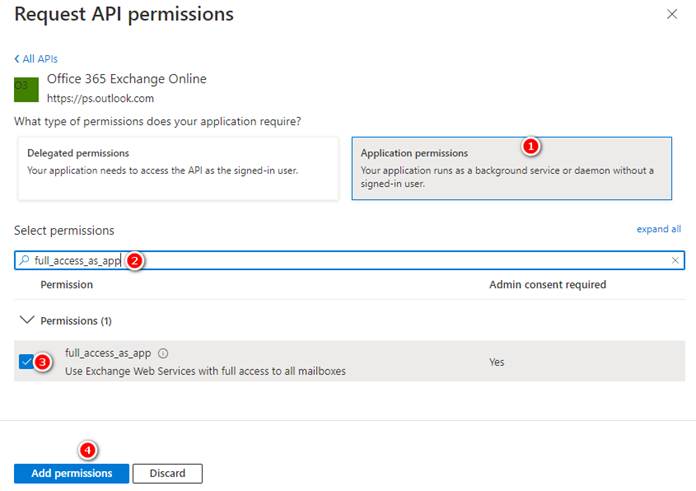
The required EWS permission is:
-
API: Office 365 Exchange Online
-
Permission type: Application permissions
-
Permission:
full_access_as_app -
Consent: Administrator consent is required
Do not select Delegated permissions. Microsoft Graph User.Read is not required by the Exchange Folder Agent for EWS app-only authentication.
Configure the permission
1. Create the dedicated app registration and its client secret or certificate.
2. In the Microsoft Entra admin center, go to Identity > Applications > App registrations.
3. Select the app registration used by the Exchange Folder Agent.
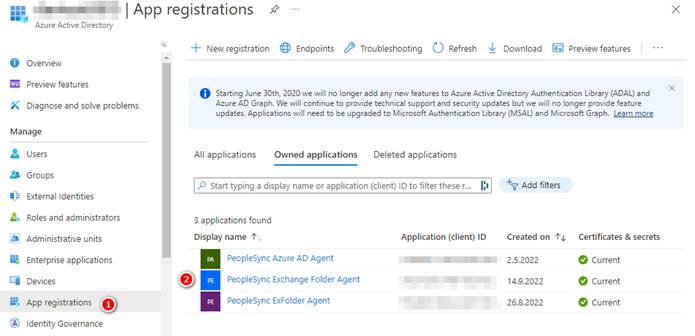
4. Open API permissions and select Add a permission.
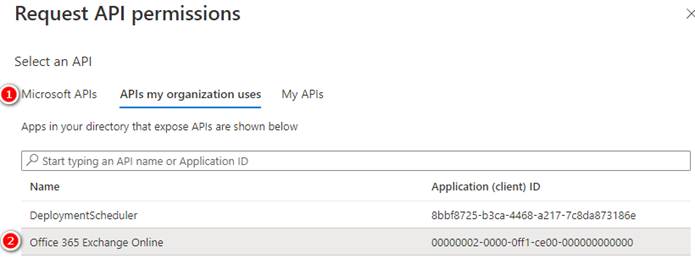
5. Select APIs my organization uses, search for Office 365 Exchange Online, and select it.
6. Select Application permissions, enable full_access_as_app, and select Add permissions.
7. On API permissions, select Grant admin consent and confirm the operation.
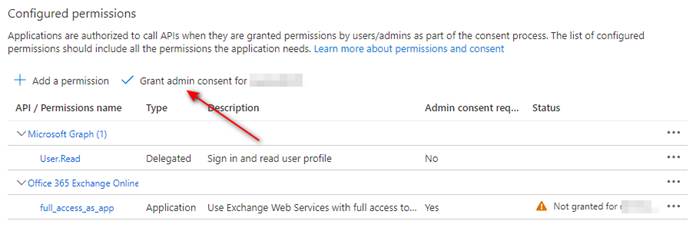
8. Confirm that Office 365 Exchange Online – full_access_as_app is listed as an Application permission and that administrator consent has been granted.
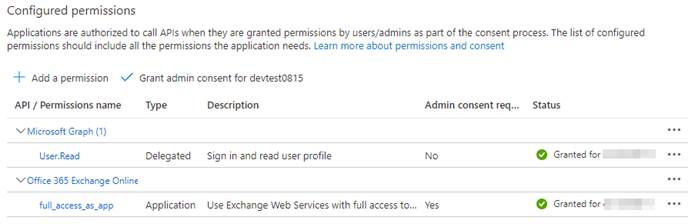
full_access_as_app grants the application full access to all Exchange Online mailboxes unless access is restricted. Obtain the customer’s security approval, configure an Exchange Online application access policy for only the approved mailboxes, and test both allowed and denied mailboxes before running PeopleSync. Do not compensate for a failed policy by broadening the scope.
Restrict and test mailbox access
Follow Microsoft’s Limit mailbox access for applications guidance to create the application access policy. After the policy has propagated, verify an allowed and a denied mailbox:
Test-ApplicationAccessPolicy -Identity "allowed-mailbox@contoso.com" -AppId "<application-client-id>"
Test-ApplicationAccessPolicy -Identity "denied-mailbox@contoso.com" -AppId "<application-client-id>"
The approved mailbox must report Granted; a mailbox outside the policy must report Denied. Policy changes can take time to propagate.
Configure PeopleSync
Create the Exchange Folder Agent with these properties:
Exchange API: Exchange Web Services (EWS).
Email Address: The address of an Exchange Online mailbox. PeopleSync uses this mailbox for mailbox folders and impersonates it when accessing public folders.
Folder Path: The path to a contact folder inside the mailbox or public-folder hierarchy. Separate subfolders with “\”.
Account: The Entra ID application used to access Exchange Online. Its Username is the Application (client) ID and its Tenant ID is the Directory (tenant) ID. For client-secret authentication, enter the secret value, not its secret ID.
Is Public Folder: Select this option only when Folder Path refers to the public-folder hierarchy. Clear it for a folder in the configured mailbox.
Exchange Web Services URL: Use https://outlook.office365.com/EWS/Exchange.asmx unless the customer’s Exchange configuration requires another approved endpoint.
Verify the configuration
Microsoft Graph
-
Run
Test-ServicePrincipalAuthorizationfor every mailbox PeopleSync will access. -
Confirm that
Application Contacts.Readis returned withInScope=True. -
Test a mailbox outside the scope and confirm that access is denied.
-
Run the agent and review the log for authentication or authorization errors.
Exchange Web Services
-
Confirm that
full_access_as_appis an Office 365 Exchange Online Application permission with administrator consent. -
Run
Test-ApplicationAccessPolicyfor an approved mailbox and confirmGranted. -
Run it for a mailbox outside the policy and confirm
Denied. -
Run the agent and review the log for authentication, authorization, folder-path, or impersonation errors.
For either API, compare the contacts in the configured Exchange folder with the destination address list.
Expected result: The application is authorized only for the intended mailboxes, and the configured contact folder synchronizes successfully.