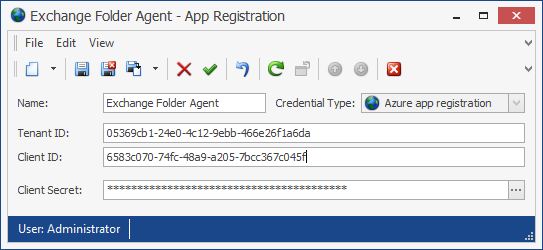
Part of Action Accounts
Entra ID App registrations are credentials used by PeopleSync agents to authenticate against Microsoft Azure or Office 365 services using modern authentication (OAuth).
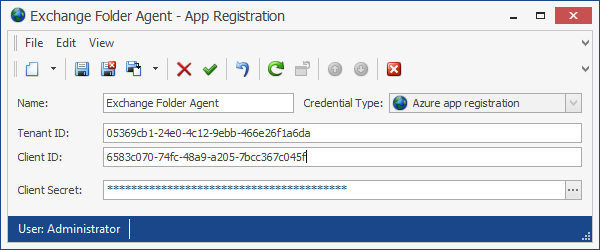
Entra ID Apps are always tied to one tenant. They must first be created in Microsoft Azure Portal and then saved in PeopleSync Console.
Entra ID Apps contain the following information:
Tenant ID: A GUID that uniquely identifies the tenant. An agent using this Entra ID App will always use the app registration’s tenant.
Client ID: A GUID that uniquely identifies the app registration.
Client Secret: A string that is used together with tenant ID and client ID to authenticate against Entra ID using OAuth.
Note: Please note that the client secret has an expiration date in Entra ID. Before its expiration date, you must create a new client secret in Entra ID and update it in PeopleSync Console.
Creating an app registration in Azure Portal
To create an app registration in Microsoft Azure Portal, do the following:
-
In a browser, navigate to https://portal.azure.com, then go to Entra ID.
-
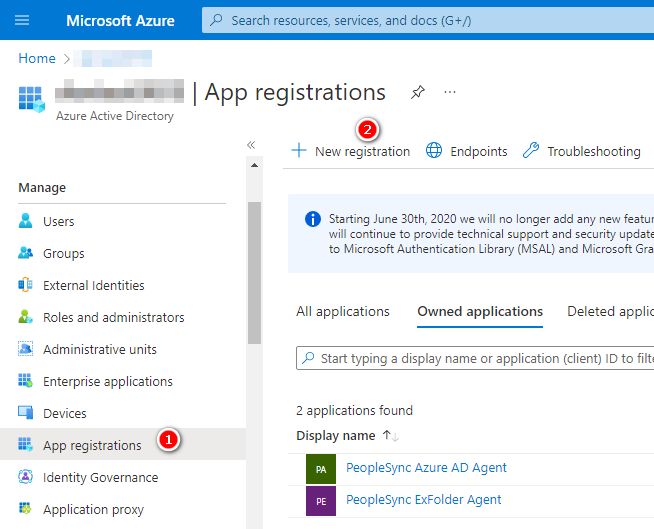
On the left-hand side, select App registrations, then New registration.
-
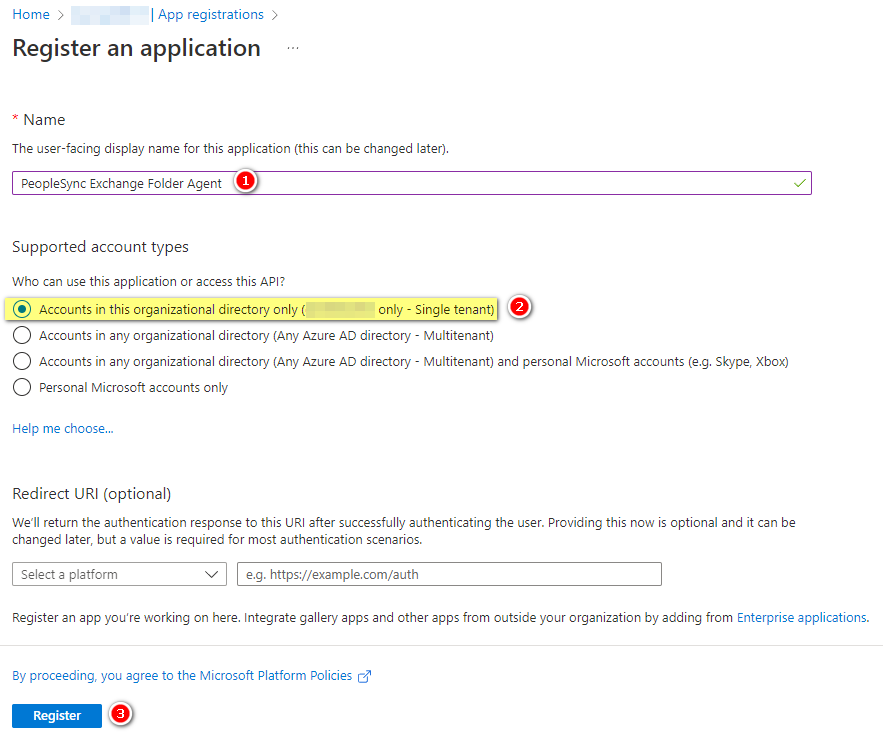
Enter a name for the app registration. As account type, select Accounts in this organizational directory only. Then click on Register.
-
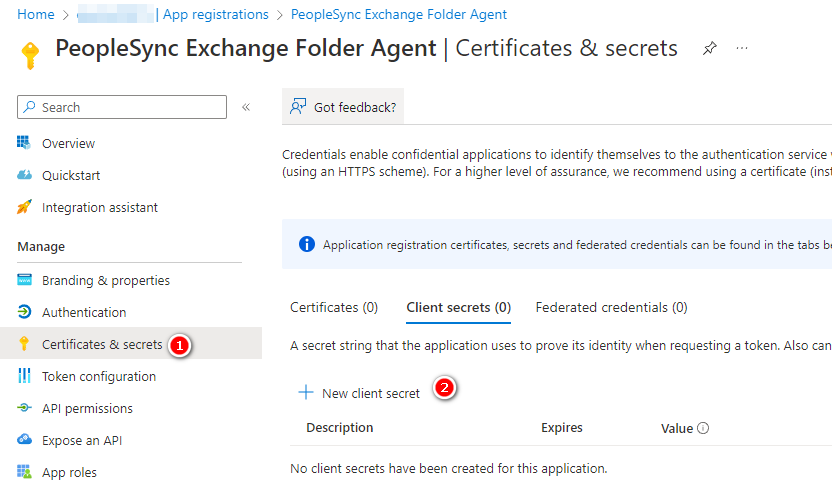
Inside the new app registration, go to Certificates & Secrets and select New client secret to create a new secret.
-
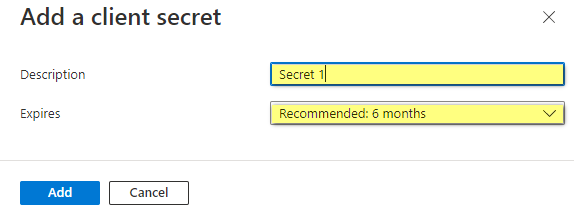
In the Add a client secret dialog, enter a description and validity period for the secret. Then click add.
-
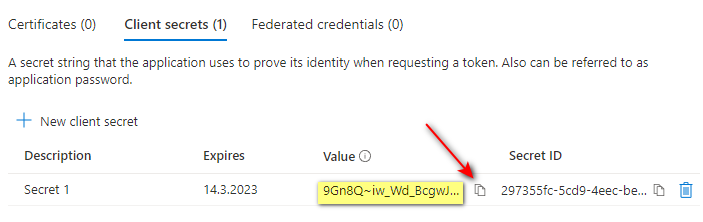
The client secret will now be shown in the client secrets list. Click on the copy icon to copy the client secret’s value and keep it for reference. This will be needed for PeopleSync.
-
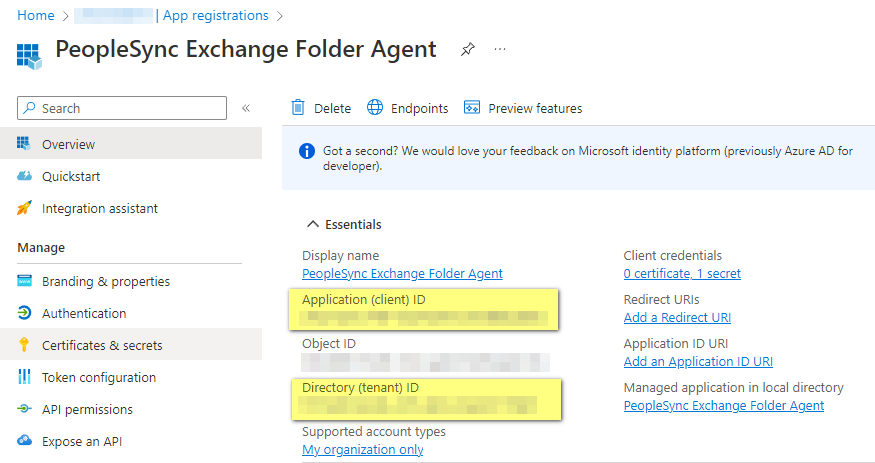
Return to the app registration’s overview screen. Copy Application (client) ID and Directory (tenant) ID, and keep them for reference.
Saving an app registration in PeopleSync
To save an app registration in PeopleSync, do the following:
-
In PeopleSync Console, navigate to Agents > Action Accounts.
-
Click on the arrow next to the New icon and select Entra ID App.
-
In the dialog, enter the tenant ID, client ID and client secret values from the app registration you created in azure Portal.