
The Active Directory Agent imports contact data from Active Directory users and contacts. It has a fixed mapping of Active Directory to vCard fields and imports the photo contained in the user objects’ thumbnailPhoto attribute. It always needs to connect to a domain controller that is a global catalog server.
The agent retrieves all contacts or users found in the subtree of a base DN (i.e. an organizational unit or the domain root), that match the criteria defined by an object filter. To connect to the directory, an account with read permission is needed.
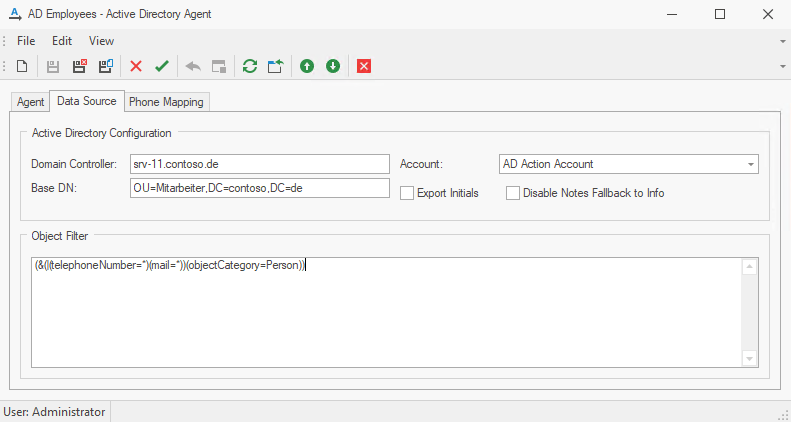
The Active Directory Agent configuration example shows an Active Directory Agent that imports all "Person" objects in and below the "Marketing" organizational unit. It does not import initials and uses an account named "Active Directory Action Account" to access the directory.
Requirements
The following requirements must be met by the source system:
-
Microsoft Active Directory based on Windows Server 2008 R2 and higher.
Configuration
The Active Directory Agent uses the following configuration parameters:
Global Catalog: The DNS name or IP address of an active Directory global catalog server.
Base DN: The distinguished name of a base container or organizational unit. Matching objects will be retrieved from this container and all child containers. For example, the organizational unit "Marketing" located directly below the root of the domain "ps.local" needs to be specified as "ou=Marketing,dc=ps,dc=local".
Distinguished names can be copied from the "attribute editor" tab in Active Directory Users and Computers. This tab only shows when "Advanced Features" is enabled in the "View" menu.
Object Filter: The object filter defines which Active Directory objects shall be imported into PeopleSync. For example, the Filter " (objectCategory=Person)" makes sure that only objects of type "Person" – i.e. users and contacts are imported into PeopleSync.
The object filter supports the following classes:
-
organizationalPerson
-
contact
-
user
-
person (If object is also organizationalPerson)
The following object filters are provided for ease of use:
-
(objectCategory=Person)
All objects of type Person – i.e. users and contacts -
(&(|(telephoneNumber=*)(mail=*))(objectCategory=Person))
All objects of type Person, such as users and contacts, provided they have a telephone number and email address. -
(&(!(msExchHideFromAddressLists=TRUE))(|(telephoneNumber=*)(mail=*))(objectCategory=Person))
All objects of type Person, such as users and contacts, provided they have a telephone number and email address and are members of the Exchange Global Address List.
For an introduction on how to create LDAP filters, please refer to the documentation on Microsoft TechNet[3].
Account: An account that is used to read data from Active Directory and has at least read permission in Active Directory.
Export Initials: If checked, the "Initials" field will be imported.
Disable Notes Fallback to Info: This option determines whether information from the "Notes" field should be used as a backup (or "fallback") for the "Info" field if the "Info" field is empty or unavailable. When this setting is enabled (checked), the system will not use the "Notes" field as a substitute for missing "Info" data. When disabled (unchecked), if the "Info" field does not contain data, the system will automatically pull from the "Notes" field instead.
Field Mapping
The mapping of Active Directory properties to vCard fields can be found in Active Directory Agent – Field Mapping
Phone Number Mapping
Phone number mapping is supported by this agent. See chapter Phone Number Mapping for details.
Verify the configuration
After completing the configuration:
-
Validate the configured Active Directory connection and base DN.
-
Run the agent against a test or controlled address list.
-
Review the agent log for bind, filter, permission, and mapping errors.
-
Compare several imported contacts, group restrictions, phone numbers, and photos with Active Directory.
Expected result: Only objects matching the configured scope and filter are imported, with the expected field values.