
The Entra ID Agent imports contact data from Entra ID to PeopleSync. It has a fixed mapping of Entra ID to vCard fields. It also imports the user’s photo from Entra ID.
The agent uses an app registration to connect to Entra ID via Graph API. It will retrieve users and contacts that meet the criteria specified by a filter.
It can be used in scenarios where Exchange Online is used, but the users and contacts are not synched to Entra ID using Entra ID Connect. If users and contacts are synched from a local Active Directory to Entra ID, then you can use the Active Directory Agent instead.
The Entra ID Agent configuration example shows an example configuration where contacts are loaded from Entra ID.
Requirements
The following requirements must be met by the source system:
-
Microsoft Entra ID
Configuration
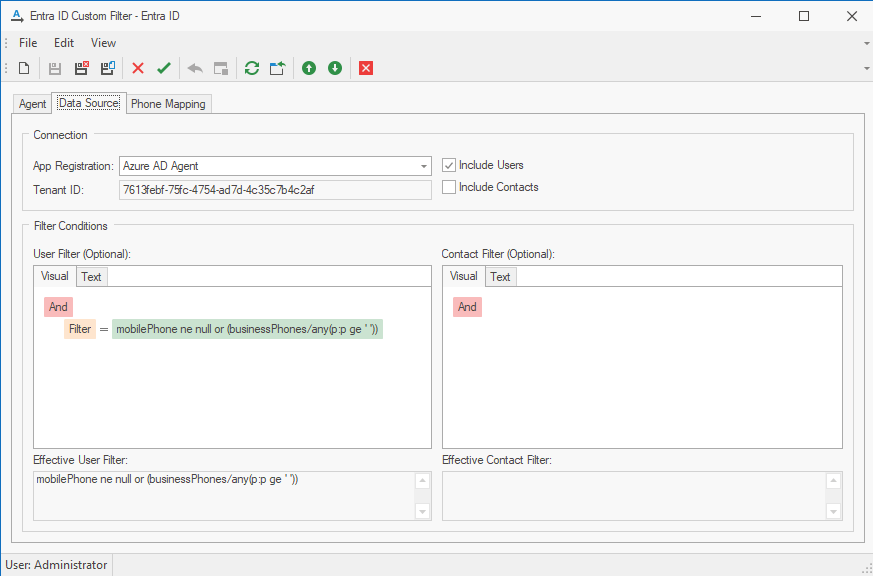
The Entra ID Agent uses the following configuration parameters:
App Registration: An app registration in Entra ID with the following permissions:
-OrgContact.Read.All
-User.Read
-User.Read.All
Please see 6.2.2 Entra ID App or 6.2.3 Entra ID App Certificate for details on how to create one.
Tenant ID: Tenant from which users and contacts shall be loaded. Automatically filled from Entra ID App or Entra ID App Certificate.
Include Users: If checked, users are imported from Entra ID.
Include Contacts: If checked, contacts are imported from Entra ID.
User Filter: Optional filter to select specific user objects.
Include Contacts: Optional filter to select specific user objects
Creating an App Registration in Entra ID
To configure the Entra ID Agent, proceed as follows:
-
Create an App registration with certificate or client secret authentication as explained in 6.2.2 Entra ID App or 6.2.3 Entra ID App Certificate.
-
In a browser, navigate to https://portal.azure.com, then go to Entra ID.
-
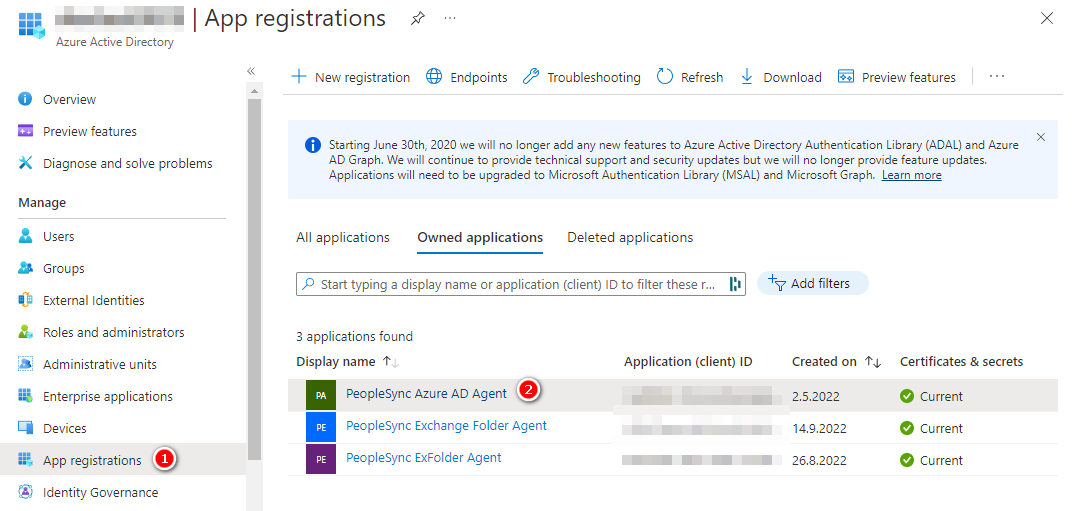
On the left-hand side, select App registrations, then select the relevant app registration in the list.
-
On the left-hand side, go to API permissions, then click on Add a permission.
-
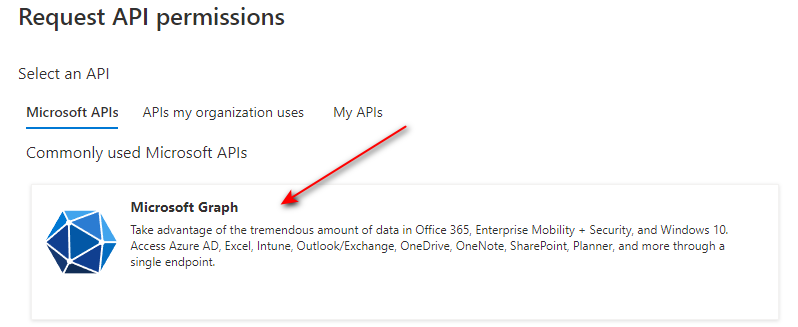
Now select Microsoft Graph.
-
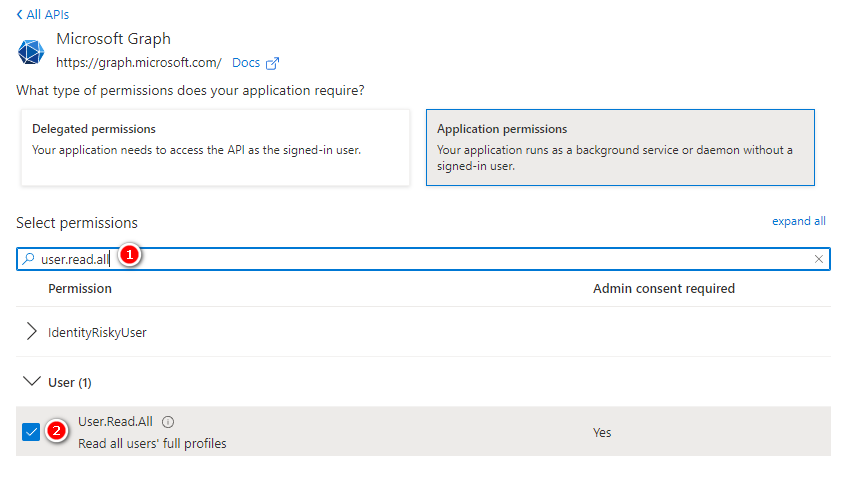
In the next step, select application permissions, then User.Read.All and OrgContact.Read.All permissions and click on add permissions.
-
On the API permissions tab, click on Grant admin consent and confirm to grant these permissions in your tenant.
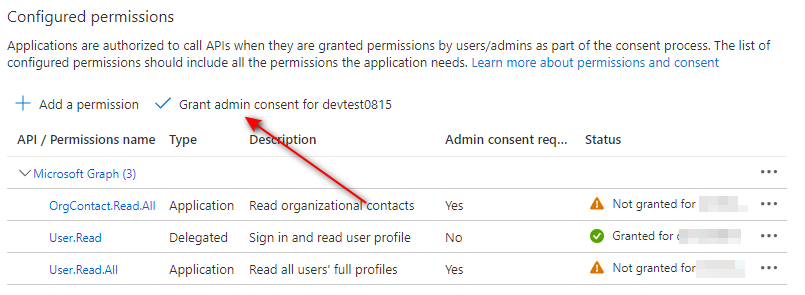
-
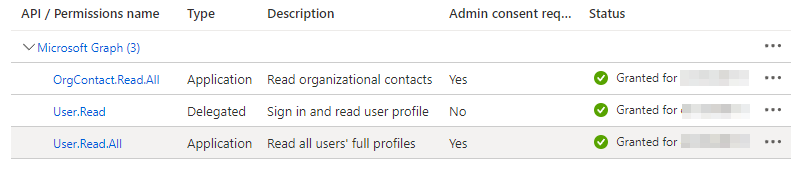
The following delegated permissions should now be set:
Microsoft Graph:
User.Read.All (Application),
OrgContact.Read.All (Application)
Field Mapping
See Entra ID Agent – Field Mapping .
Phone Number Mapping
Phone number mapping is supported by this agent. See chapter Phone Number Mapping for details.
Verify the configuration
After completing the configuration:
-
Confirm that the Entra application has the documented permissions and admin consent.
-
Run the agent against a test or controlled address list.
-
Review the agent log for authentication, permission, throttling, and mapping errors.
-
Compare several imported users and organizational contacts with Microsoft Entra ID.
Expected result: The agent authenticates through Microsoft Graph and imports only the expected directory objects.