
The Exchange GAL Agent imports contact data from the Exchange Server global address list to PeopleSync. It has a fixed mapping of Active Directory to vCard fields. It also imports the photo associated with the user or contact if the source system is Exchange 2013 or higher.
Note: Microsoft is disabling basic authentication in Exchange Online from October 1st, 2022. For Exchange Online, use the Entra ID Agent instead.
The agent uses a remote PowerShell connection to an Exchange Server to retrieve users and contacts that meet the criteria specified by a filter. Furthermore, it downloads user and contact photos through the Exchange 2013 or Office 365 REST Web API.
It can be used in scenarios involving a hosted Microsoft Exchange solution, where Exchange Server can be queried by remote PowerShell, but the hosted Active Directory is inaccessible from client side.
Note: PowerShell 2.0 must be installed. Execution policy must be set to RemoteSigned[4]. This is configured during setup. The agent will malfunction in case the setting is changed to a level other than “RemoteSigned” or “Unrestricted”.
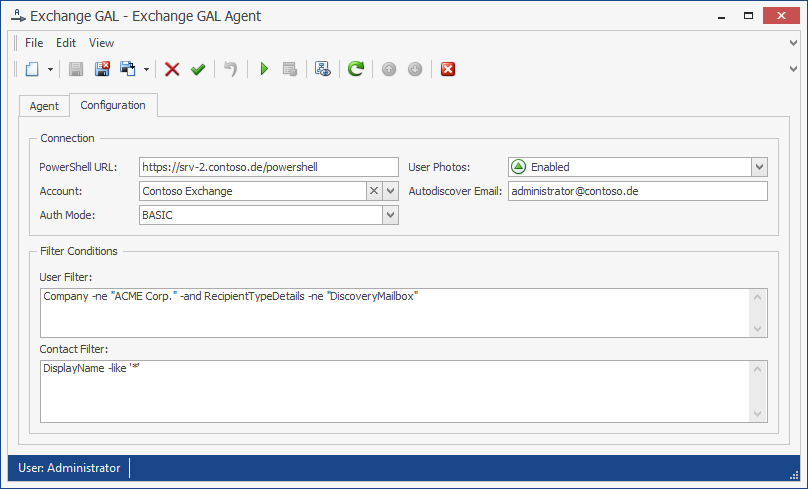
The Exchange GAL Agent configuration example shows an example configuration where contacts are loaded from an Exchange Server. The PowerShell Server URL points to the Exchange Server and an account with permission to execute the "get-user" and "get-contact" has been specified. In this case, basic authentication has been chosen as authentication method. The filters exclude users from the “ACME” corporation and the discovery mailbox.
Note: If you are using Exchange Server in an on-premise installation, we recommend using the Active Directory Agent to fetch the Exchange GAL.
Requirements
The following requirements must be met by the source system:
-
Microsoft Office 365, Exchange Online, or
Microsoft Exchange Server 2010 and higher -
For Photos: Microsoft Exchange 2013 and higher
-
Remote Exchange Management Shell
Configuration
The Exchange GAL Agent uses the following configuration parameters:
PowerShell URL: The remote PowerShell connection URI to the Exchange Server (Office 365: https://ps.outlook.com/powershell).
Account: An account that has permission to connect via remote PowerShell and execute the "get-user" and "get-contact" commands.
Auth Mode: The authentication method used to authenticate the user's credentials. Supported methods are:
-
BASIC: Basic authentication. Used for Office 365, among others.
-
KERBEROS: Kerberos authentication is being used.
-
NEGOTIATE: Either Kerberos or NT LAN Manager (NTLM) is used. Domain accounts are authenticated via Kerberos, while for local computer accounts, NTLM is used.
User Photos: Enables or disables the download of user and contact photos. Office 365 or Exchange 2013 and higher is required for this feature to work.
Autodiscover Email: The account’s email address. This is used to automatically discover the Exchange Web Services URL. Optional when User Photos are deactivated.
User and Contact Filter: The filters define which users or contacts are loaded from the Exchange GAL. They use PowerShell-style Filter syntax. For a list of filterable properties, please refer to section 9.
The default user filter "RecipientTypeDetails -ne 'DiscoveryMailbox'" excludes the DiscoveryMailbox user, while the default contact filter "DisplayName -like '*'" excludes all contacts with an empty display name.
Field Mapping
The Exchange GAL Agent uses the same field mapping as the Active Directory Agent (see Active Directory Agent – Field Mapping ).
Phone Number Mapping
Phone number mapping is supported by this agent. See chapter Phone Number Mapping for details.
Choosing the right agent for hosted Microsoft Exchange
The Active Directory Agent, Entra ID Agent and Exchange GAL Agent are both able to fetch the GAL content from Active Directory.
On-Premises Exchange Server: In the case of an on-premises Exchange Server installation, we usually recommend the Active Directory Agent.
Hybrid environment: If you have Entra ID Connect in place, you can use the Active Directory Agent, as the source for the GAL is your on-premise Active Directory.
Exchange Online only: If you are not using Entra ID Connect or have users or contacts in your Exchange Online GAL that don’t exist in your on-premise AD, then use the Entra ID Agent.
Hosted Exchange Server: If you have outsource Exchange Server to a hosting provider and only have access to Exchange PowerShell, but not the underlying Active Directory, then use GAL Agent.
Tips for Implementing the Exchange GAL Agent
The GAL Agent runs the PowerShell cmdlets "get-user" and "get-contact" to get users and contacts from Exchange Server. Both cmdlets have a parameter "-filter" which is configurable in the PeopleSync Console. To edit the filter, open the GAL Agent in the console and modify the "User Filter" and "Contact Filter".
The filters use PowerShell Syntax. For example, if you want to get all users that have email addresses in a specific domain (e.g. example.com), you can enter the following into the "User Filter" field:
WindowsEmailAddress -like '*@example.com'
You can use the following operators to build filters:
-
-ne (not equal to)
-
-lt (less than)
-
-le (less than or equal to)
-
-gt (greater than)
-
-ge (greater than or equal to)
-
-like (like—a wildcard comparison)
-
-notlike (not like—a wildcard comparison)
-
-contains (contains the specified value)
-
-notcontains (doesn't contain the specified value)
-
-and (add another condition)
-
-or
You can develop and test the filters in PowerShell by opening a Remote PowerShell session to Exchange like this:
-
On the PeopleSync server, log in as the user the Agent runs under.
-
Open PowerShell with "Run as Administrator".
-
Run the following command and enter the credentials of the user you are using to connect to Office 365:
$Cred = Get-credential
-
Run the following command. The ps.outlook.com URL is the Office 365 Remote Powershell URL:
$Session = New-PSSession -ConfigurationName Microsoft.Exchange -ConnectionUri https://ps.outlook.com/powershell/ -Credential $Cred -Authentication Basic –AllowRedirection
-
Run the following command. This should import the Remote PowerShell cmdlets needed to query Office 365:
Import-PSSession $Session
Then you can test the filter by entering one of the following:
get-user -Filter {<Here goes your filter>}
get-contact -Filter {<Here goes your filter>}
and check if the results are correct.
For example, to get all users with an email address in the example.com domain, you can try this filter:
WindowsEmailAddress -like '*@example.com’
To test this filter in PowerShell, you would run this command:
Get-User -Filter {WindowsEmailAddress -like '*@example.com'}
You can also use "-and" and "-or" to have multiple conditions, like the following:
WindowsEmailAddress -like '*@example.com' -and Department -eq 'IT'
The users matching this would need to have a primary email address in the example.com domain and be from the IT department, i.e. have "IT" set as the value in their "Department" attribute.
Verify the configuration
After completing the configuration:
-
Confirm that the configured account can reach the on-premises Exchange PowerShell endpoint.
-
Run the agent against a test or controlled address list.
-
Review the agent log for authentication, remoting, filter, and permission errors.
-
Compare several imported recipients with the Exchange address list.
Expected result: The agent imports the expected Exchange recipients and applies the configured filter.