
Introduction
Using Android Enterprise and managed configurations it is possible to streamline the setup process of the PeopleSync Client App on a large scale. Administrators can centrally configure and lock down various aspects of the app and influence the sync process.
Please note that the user must open the PeopleSync app once to complete account creation.
Configuring base URL and authentication
The following keys can be set
-
login_base_url (type: string)
-
login_user_name (type: string)
-
login_password (type: string)
The login_user_name and login_password keys are optional if login_base_url is set. This enables various use cases which are documented in the following sections.
Only base URL
If only the base URL is provided via managed configurations, the account creation mask will change and present a simpler user interface where only username and password need to be entered.
This mode is useful if you plan to add multiple accounts per device.
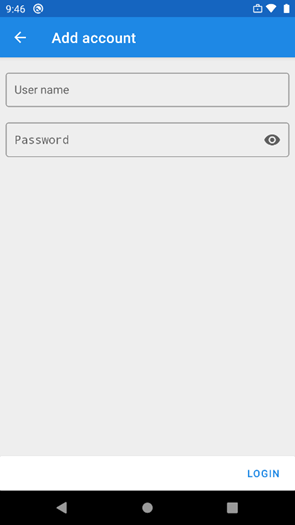
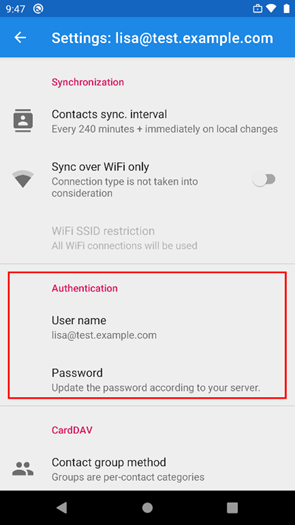
The user can update username and password for a chosen account.
Base URL and username
If base URL and username are provided via managed configurations, the user only needs to enter their password. The remaining account creation process is automatic and only requires a final confirmation by the user. This mode can be beneficial as it doesn’t require the username to be transferred to the client device.
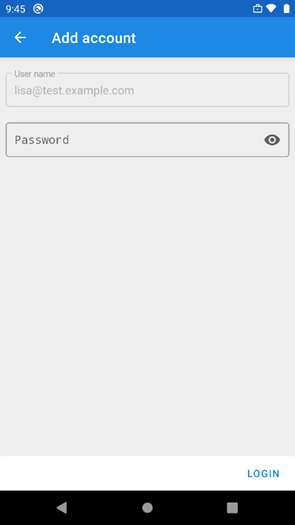
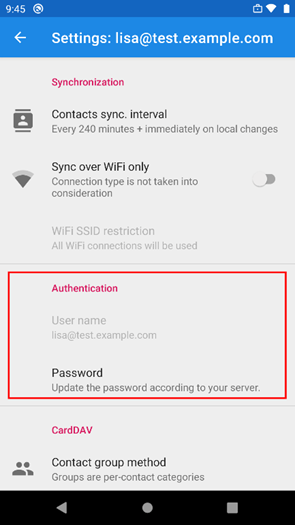
The user can update the password but changing the username is forbidden.
Base URL, username, and password
If base URL, username, and password are specified via managed configurations, the user doesn’t need to provide any additional input and simply needs to start the setup process by clicking the (+) button and confirming the account creation.
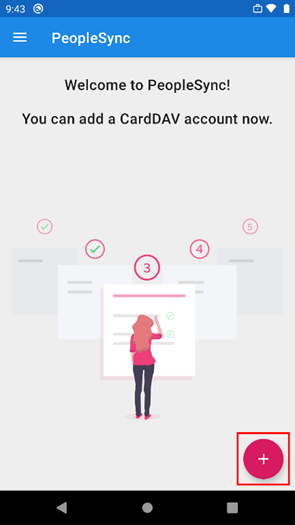
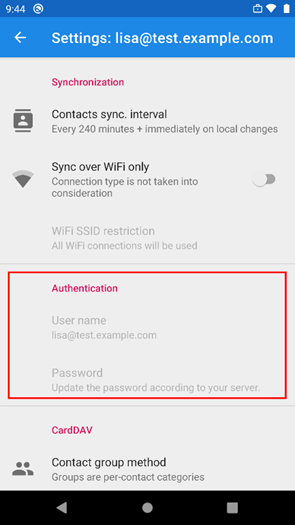
Neither username nor password can be overridden by the user in this mode.
Configuring proxy settings
The following keys can be set
-
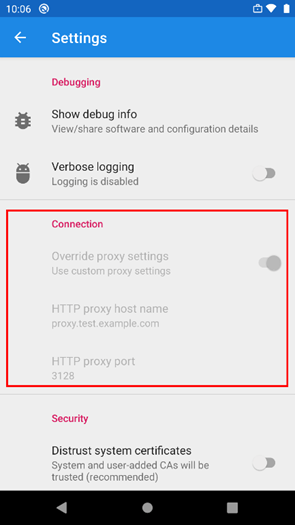
override_proxy (type: boolean, default: false)
If set to true, an app specific proxy can be specified. -
override_proxy_host (type: string)
IP address (e.g. 10.0.1.10) or hostname (e.g. test.example.com).
This key is mandatory if override_proxy is true. -
override_proxy_port (type: integer)
Port number (e.g. 3128). This key is mandatory if override_proxy is true.
If those keys are provided via managed configurations, they can’t be overridden by the user.
Configuring sync over WiFi
The following keys can be set
-
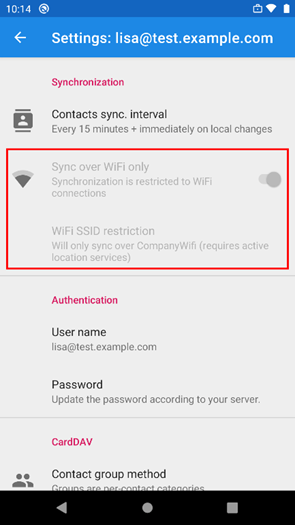
wifi_only (type: boolean, default: false)
If set, synchronization will only happen if the device is connected via WiFi. -
wifi_only_ssids (type: string)
Synchronization can be further restricted by providing a comma separated list of SSIDs (WiFi network names). This can be useful e.g. if you want to restrict devices to only sync when they are connected to your company WiFi network. This key is optional if wifi_only is true.
If those keys are provided via managed configurations, they can’t be overridden by the user.
Default sync interval
The following key can be set
-
default_sync_interval (type: integer)
The interval is specified in seconds. The minimum value is 900s, I.e. 15min, as Android doesn’t allow shorter sync intervals.
This setting is only used when creating new PeopleSync address book accounts. Changing this setting will not update existing accounts.
Configuring PeopleSync App in Microsoft Intune
The following chapter explains how to create an app configuration policy for the PeopleSync app in Microsoft Intune.
For configuration via MDM to work, you need to first distribute the PeopleSync app through Intune.
Distributing the PeopleSync app
-
In Microsoft Intune admin center, go to Apps > Android.
-
Klick Add > Managed Google Play App
-
In Managed Google Play, Search for “PeopleSync CardDAV Client” approve and select the app.
-
Back in Apps > Android, select the PeopleSync app you just added and assign it to your devices.
Creating an app configuration policy
-
In Microsoft Intune admin center, go to Apps > App configuration policies.
-
Click on Add > Managed Devices to create a new policy.
-
Enter the following information:
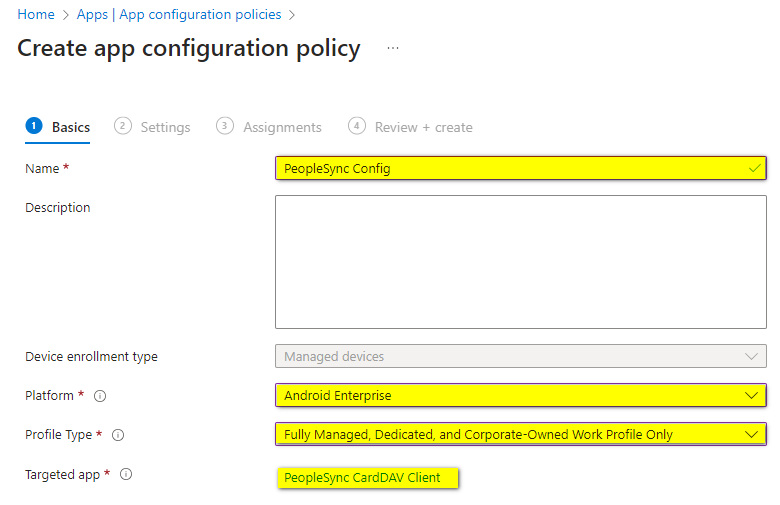
Name: The name of the policy
Platform: Android Enterprise
Profile Type: Type of profile, e.g., “Fully Managed…”
Targeted app: “PeopleSync CardDAV Client”
-
On the “Settings” tab, set permissions for the PeopleSync app first:
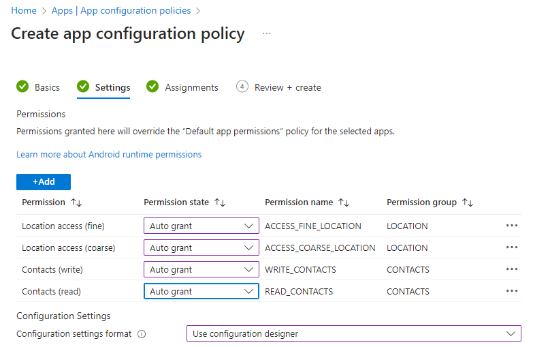
The following permissions are needed:
- Location access (fine) - ACCESS_FINE_LOCATION
- Location access (coarse) - ACCESS_COARSE_LOCATION
- Contacts (write) – WRITE_CONTACTS
- Contacts (read) – READ_CONTACTS
-
Set the configuration settings format to “Use configuration designer”.
-
Then add the settings necessary for your deployment by clicking Add and selecting keys from the list on the right.
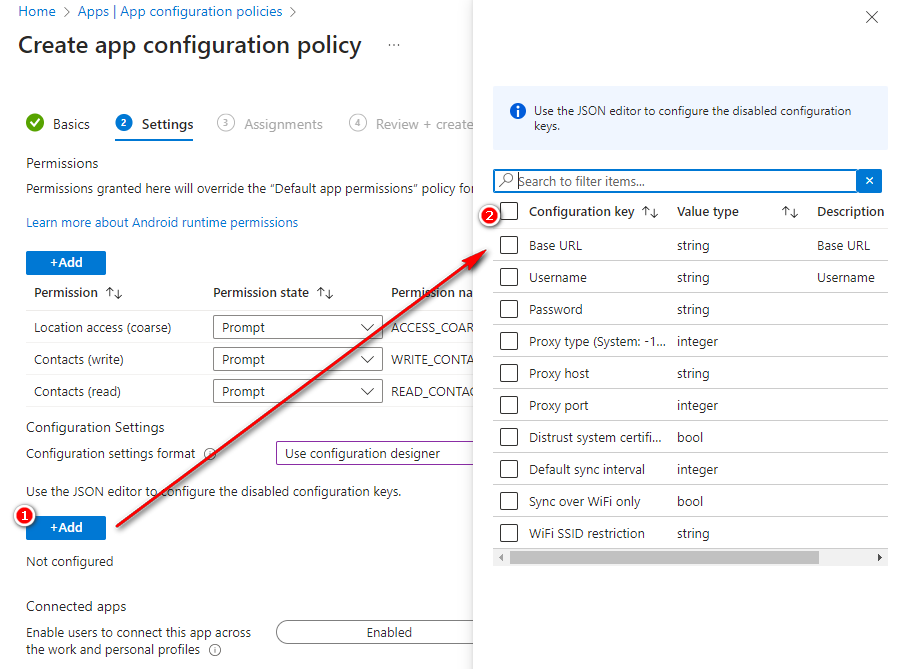
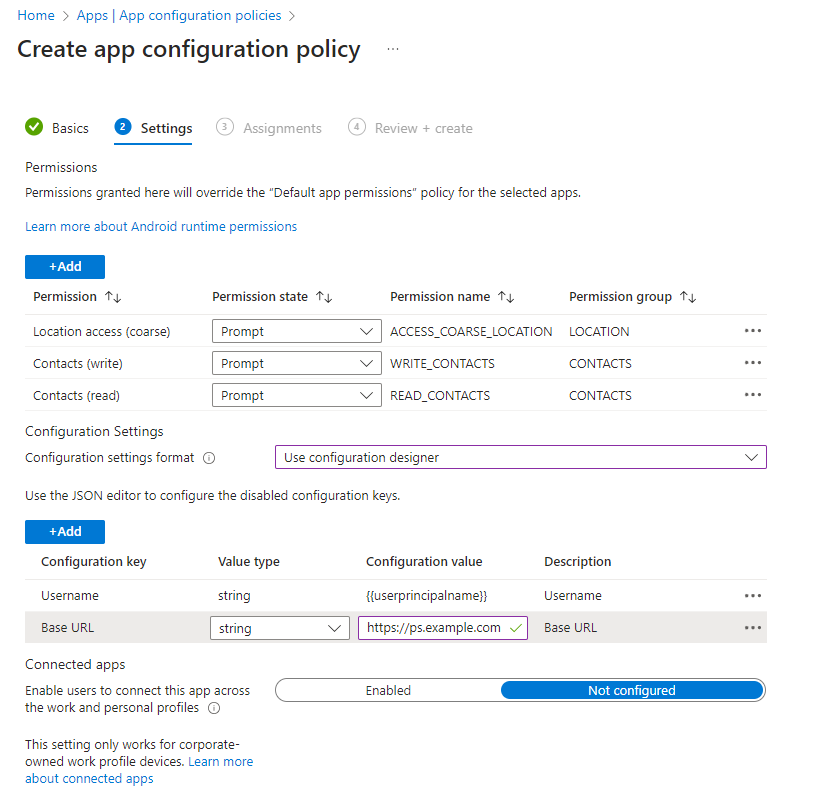
For example, your configuration could look like this, if the user’s credentials should be used:
-
Proceed to Assignments and select the group of devices the policy should be deployed to.
-
Review your settings on the Review + create tab and create the policy.