
The Microsoft CRM Agent imports contacts from the contacts list in Microsoft Dynamics CRM. The agent uses a default mapping of list fields to vCard fields, but a custom mapping can also be configured.
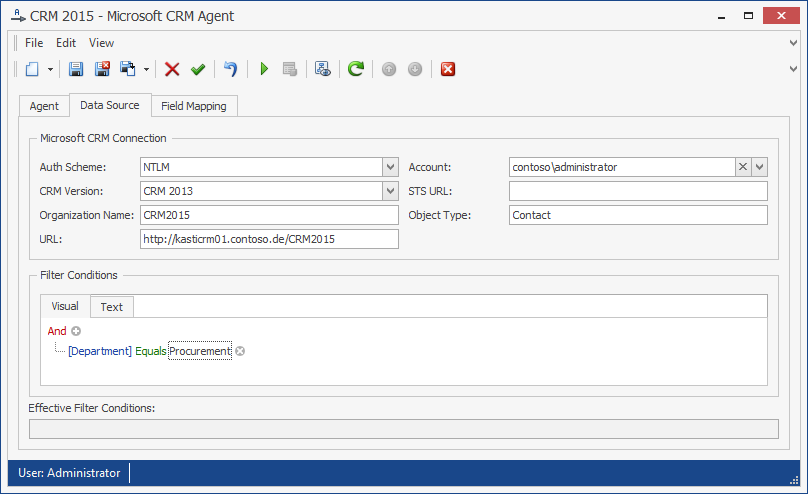
The Microsoft CRM Agent configuration example shows a sample configuration of the Microsoft CRM agent. The agent will connect to a Microsoft Dynamics CRM instance and fetch all contacts available to the service account. The credentials used for the connection are stored in the action account named “contoso\administrator”.
Requirements
The following Microsoft Dynamics CRM versions are supported:
-
CRM Online WLID (Windows Live)
-
CRM Online Office 365
-
CRM 2013
-
CRM 2011
-
CRM 2011 IFD
-
CRM 4.0
Configuration
The Microsoft CRM Agent uses the following configuration parameters:
CRM Version: The type of Dynamics CRM server to which you are connecting. In case of Dynamics CRM Online, use either “CRM Online WLID” or “CRM Online Office 365”. The “CRM Online WLID” setting is required to connect using the Windows Live security token service (STS), and “CRM Online Office 365” is required to connect using the Office 365 STS. For a CRM Online with local ADFS or an IFD instance of CRM, you must also specify the “STSURL” property.
Organization Name: The name of the organization, e.g. “TheOrganization”. This can be determined from the URL used to access Microsoft Dynamics CRM.
URL: The URL of the CRM organization, e.g. “http://mycrm/TheOrganization”.
Auth Scheme: The authentication method used. One of: NTLM, BASIC, DIGEST, NONE. Only used for connections to CRM 4.0.
Service Account: An account that has the right to view the organization’s contacts.
STS URL: The URL of the security token service (STS). Must only be set for IFD instances of CRM or CRM Online with local ADFS.
Filter Conditions: A list of filter conditions. Blank, if no conditions are specified. For the LDAP Agent, the following operators may be used:
-
And
-
Or
-
Equals
-
Does not equal
-
Is less than / Is less than or equal to
-
Is greater than / Is greater than or equal to
-
Contains (Use Wildcard Operator ‘%’)
Field Mapping
In Field Mapping (see Figure 39: Microsoft CRM Agent Field Mapping), a custom mapping of CRM fields to vCard fields can be specified.
The field mapping shows the names of the vCard fields as field names. The corresponding name of the CRM field must be entered into the text box next to the field. For example, to map the CRM field “Description” to the “Notes” field in the vCard, it needs to be entered into the text box next to the “Notes” caption.
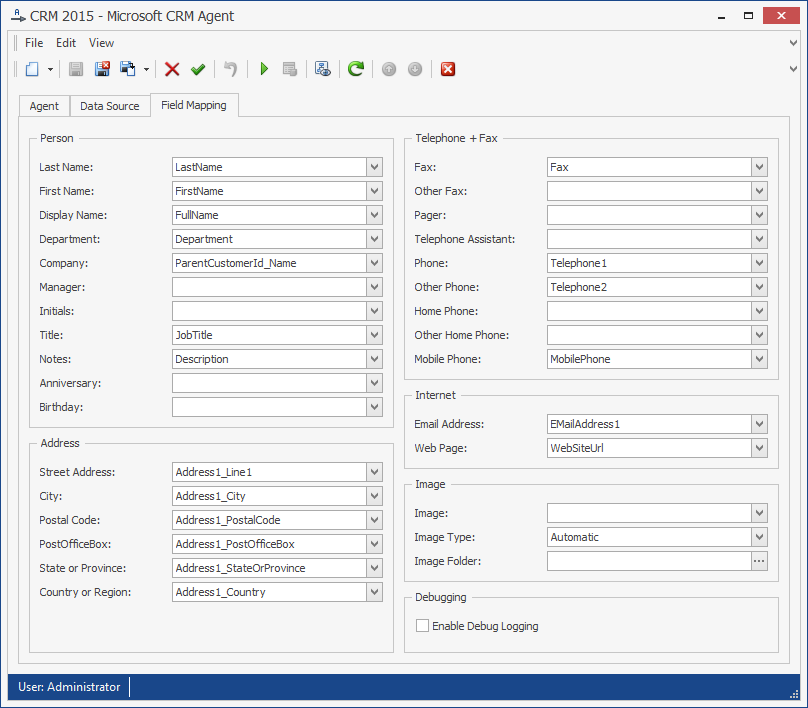
The default field mapping for the Microsoft CRM Agent is described in 9.8 Microsoft CRM Agent – Field Mapping.
In the field mapping, the following special parameters can be configured:
Image: The source field for the image data
Image Type: The image’s type. One of the following:
-
Automatic: The Agent automatically determines the type of the field.
-
File Name: The source field contains a file name. If it is a relative path, the Image Folder parameter must be set to the base directory.
-
Binary Data: The source field contains binary data.
-
Base64 Data: The source field contains base64-encoded data.
Image Folder: The image file’s base directory. When importing images of type File Name and the attribute value is a relative path, this must be set to the image’s base directory.
Debugging: Enables debug logging to a file in the service account’s temp folder. Enable only if requested by messageconcept support.
Phone Number Mapping
Phone number mapping is supported by this agent. See chapter Phone Number Mapping for details.
Verify the configuration
After completing the configuration:
-
Confirm that the action account can access the configured Dynamics CRM organization.
-
Run the agent against a test or controlled address list.
-
Review the agent log for authentication, endpoint, permission, and mapping errors.
-
Compare several imported contacts with Microsoft Dynamics CRM.
Expected result: The configured CRM organization is reachable and the expected contacts are imported.