
Part of Action Accounts
An Entra ID app certificate functions similarly to an Entra ID app that uses a client secret, but instead of relying on a client secret for authentication, it utilizes a certificate generated by PeopleSync. This certificate is then uploaded to the app registration in Azure. Using a certificate enhances security and is required for certain data sources, such as SharePoint Online.
PeopleSync will alert administrators about certificates that are set to expire in less than 30 days. These notifications appear in the backend log to ensure timely awareness. Additionally, if mail notifications are configured, PeopleSync will send email alerts, helping prevent service interruptions due to certificate expiration.
Entra ID Apps contain the following information:
-
Tenant ID: A GUID that uniquely identifies the tenant. An agent using this Entra ID App will always use the app registration’s tenant.
-
Client ID: A GUID that uniquely identifies the app registration.
-
Certificate: A certificate created by PeopleSync.
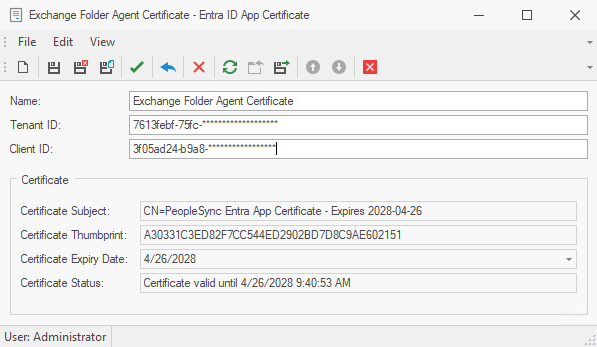
The certificate is generated when a new Entra ID App Certificate object is created in PeopleSync. The public key can be exported by clicking on the Download Public Key PEM) icon in the toolbar.
You can switch agents using PeopleSync Entra ID Apps to Entra ID App Certificates by creating an Entra ID App Certificate in PeopleSync and adding the certificate to the existing Entra ID app registration.
Creating an Entra ID App Certificate
To create an Entra ID App Certificate, follow these steps:
-
Create an app registration in Microsoft Entra ID by following steps 1–3 in Microsoft Entra ID App (client secret).
-
In PeopleSync Console, navigate to Agents > Action Accounts.
-
Click on the arrow next to the New icon and select Entra ID App Certificate.
-
Enter client id and tenant id from the newly created Entra ID app registration.
-
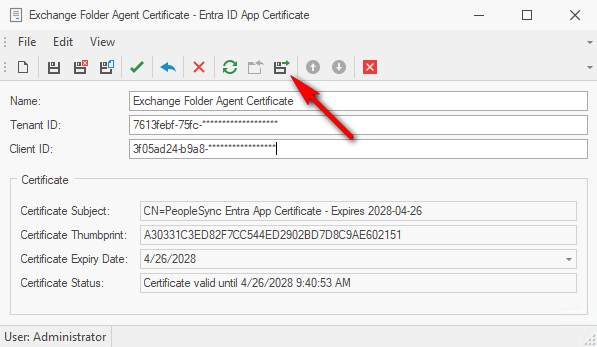
Click on the Download Public Key PEM) icon to download the certificate’s public key:
-
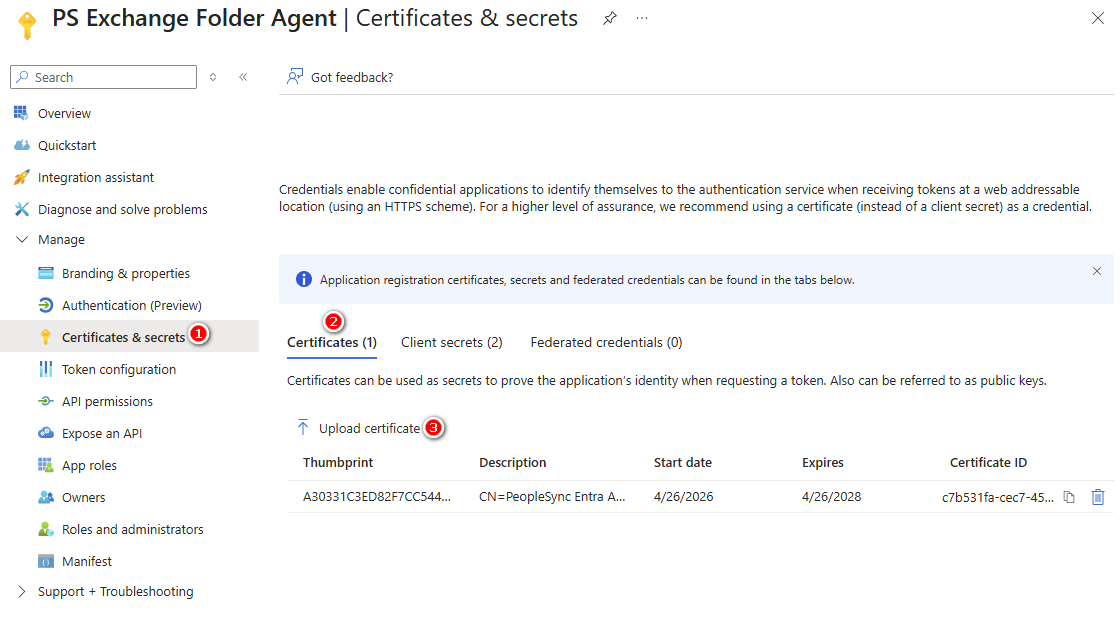
In your Entra ID app registration, go to to Certificates & Secrets > Certificates and click on Upload Certificate. Upload the certificate you downloaded from PeopleSync in the previous step:
-
Your Entra ID App Certificate is now ready for use in PeopleSync.
Replacing an expiring Entra ID App Certificate
When a certificate is about to expire, follow these stepes:
-
Create a new Entra ID App Certificate in PeopleSync Console with the same settings as the expiring one.
-
Upload the certificate from the new Entra ID App Certificate into the Entra ID app registration.
-
In the agent using the old Entra ID App Certificate, switch to the new one.
-
Delete the obsolete Entra ID App Certificate in PeopleSync.