
PeopleSync uses a Microsoft Active Directory Lightweight Directory Services (AD LDS) instance to provide contacts via LDAP. Messageconcept provides an MSI installer that will install and configure a PeopleSync AD LDS instance. In case an existing instance or an Active Directory shall be used, please contact messageconcept support for guidance.
The PeopleSync LDAP directory will use the default LDAP/LDAPS ports 389 and 636. Please make sure that these ports are not in use by any other LDAP directory on the same server (e.g. Active Directory domain controller role). The LDAP directory can be installed on a server running one of the PeopleSync components or on a server of its own.
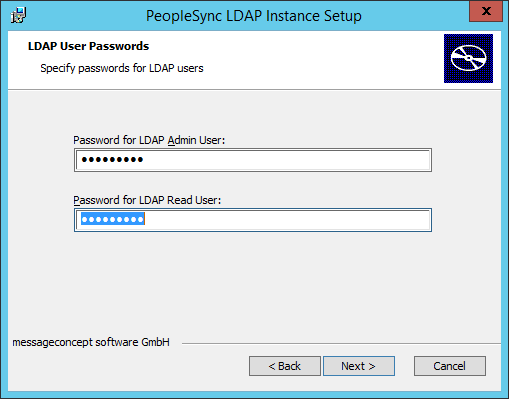
The PeopleSync LDAP directory will have two built-in accounts, an administrative account and an account with read-only permissions. The admin account psLDAP@PeopleSync.local is to be used by the PeopleSync service. The read-only account psRead@PeopleSync.local can be used by clients to search the directory.
To set up the LDAP directory, please follow these steps.
-
Log in to the server where the LDAP directory shall be installed with an account having administrator rights.
-
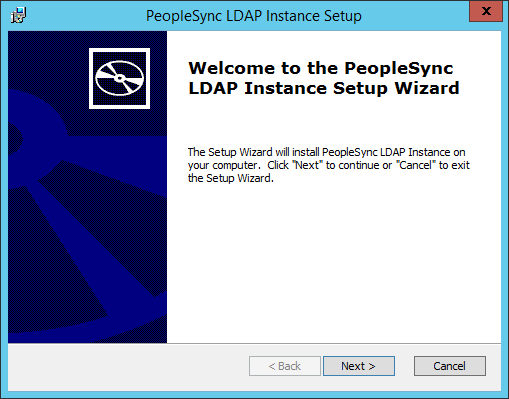
Run the PeopleSync LDAP Instance Setup MSI.
-
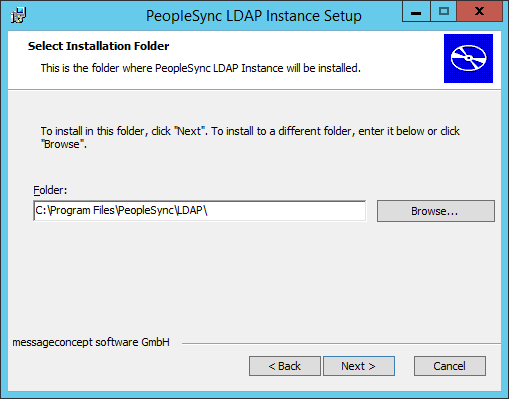
Please select an installation directory. This is the location where AD LDS data files will reside:
-
Please set passwords for the built-in PeopleSync LDAP accounts:
-
Please wait for the installation to finish.
To use the LDAP directory with PeopleSync, additional configuration in the PeopleSync Console is required. Please see section System Settings | LDAP Address Lists (Optional) .