
To finish the initial setup of PeopleSync, PeopleSync system settings, as well as licensing information need to be configured. Finally, the PeopleSync Service can be started.
System Settings in PeopleSync Console
-
Run PeopleSync Console.
-
Log in with the user Administrator and an empty password. You will then be required to set a new password for the user Administrator.
-
In the console, click on System Settings in the navigation window.
-
Fill in the mandatory settings for Hostname, Domain Name, Base DN and Internal URL and click on the Save button.
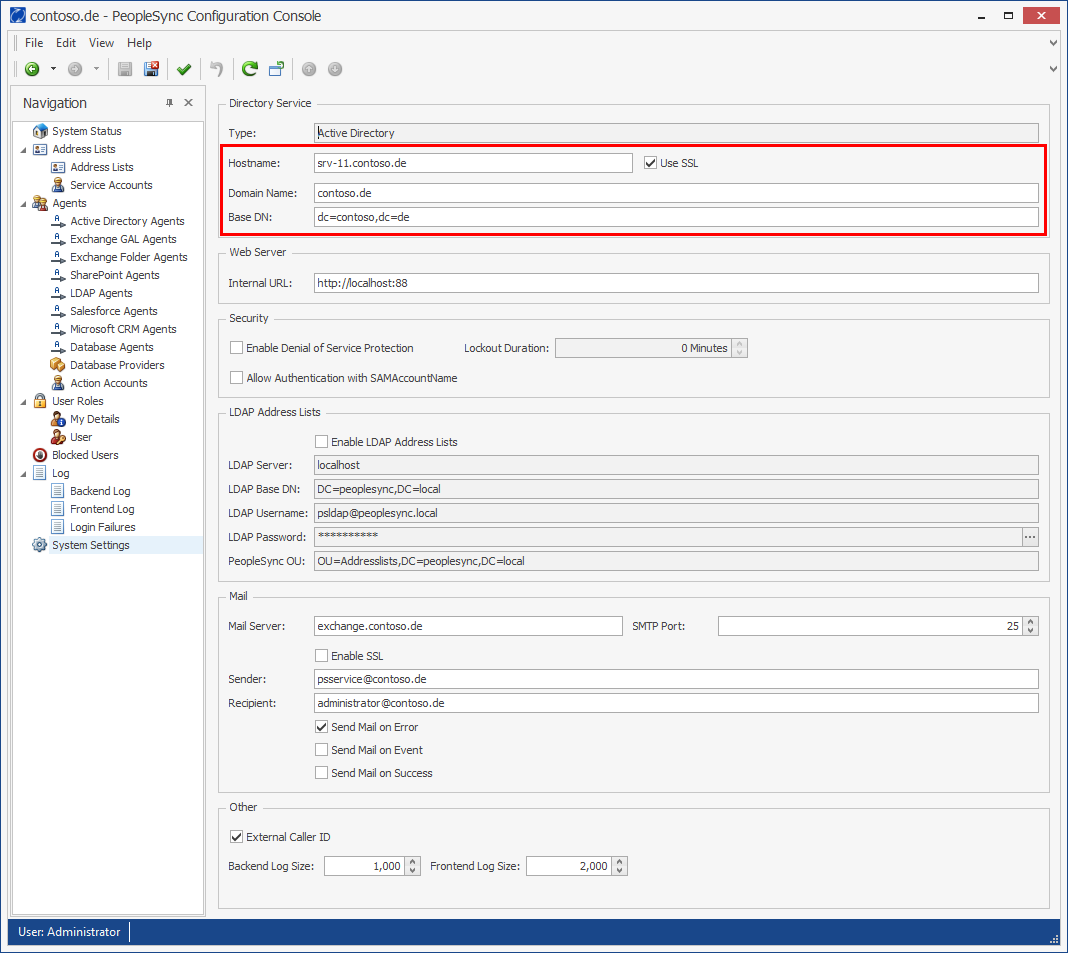
Mandatory Settings
-
Hostname: The IP address or DNS name of an LDAP Server. When using Active Directory, it must be a Global Catalog. Note that the PeopleSync Frontend server will also access this server.
-
Domain Name: The Active Directory Domain's DNS name (e.g. contoso.de). Only needs to be filled when using Active Directory.
-
Base DN: LDAP Directory's distinguished Name
(e.g. dc=contoso,dc=de).
To determine your DN, please see Appendix 9.1.
Must be empty when using NetIQ eDirectory. -
Internal URL: The URL PeopleSync Agent should use to connect to the PeopleSync Frontend Server via the internal network
(default: http://<Frontend-Server-Name>:88).
Can be the same as the external URL. If possible, SSL should be used.
Optional settings:
In addition to the mandatory settings listed above, it is possible to configure email alerting to notify administrators in case errors occur in PeopleSync.
-
Use SSL: Activate if you are connecting to your domain controller via SSL.
For email alerting, the following settings need to be configured:
-
Mail Server: The DNS name or IP address of an SMTP server.
-
SMTP Port: The SMTP server's TCP Port (e.g. 25).
-
Send Mail on Error: Send mail only when an error occurs (recommended)
-
Send Mail on Event: Send an email for every event logged to the PeopleSync database (only for debugging).
-
Send Mail on Success: Send an email every time an agent successfully runs.
LDAP Settings in PeopleSync Console (optional)
If you want PeopleSync to provide contacts via LDAP, you need to configure the connection to the LDAP directory first. Please proceed as follows:
-
Run PeopleSync Console.
-
Log in with the user Administrator.
-
In the console, click on System Settings in the navigation window.
-
Enable the Enable LDAP Address Lists option.
-
Fill in the mandatory settings for LDAP Server, LDAP Base DN, LDAP Username, LDAP Password, PeopleSync OU, and click on the Save button.
The parameters must be set as follows:
-
Enable LDAP Address Lists: Check to enable LDAP functionality.
-
LDAP Server: The LDAP server’s DNS name or IP address
-
LDAP Base DN: The LDAP directory’s base DN.
For the PeopleSync LDAP directory, please set to DC=peoplesync,DC=local. -
LDAP Username: A user with write access to the LDAP directory. This can either be a domain or LDAP user account. If you are using an LDAP account, enter either the distinguished name or – if configured – the user principal name (UPN).
For the PeopleSync LDAP directory, please set to psLDAP@peoplesync.local. -
LDAP Password: The LDAP user’s password. Please note that except for the PeopleSync LDAP directory, password policies may apply, and the user’s password may expire at some time. Please make sure that the account’s password will not expire (AD LDS attribute: msDSUserDontExpirePassword).
For the PeopleSync LDAP directory, please use the LDAP admin user password you set during installation of the PeopleSync LDAP directory. -
PeopleSync OU: The organizational unit where PeopleSync will create LDAP address lists and contacts. For the PeopleSync LDAP directory, please use OU=Addresslists,DC=peoplesync,DC=local.
License Key
Please copy the license keys you received into the following directory:
%ProgramFiles%\messageconcept GmbH\PeopleSync\Agent\Licensekeys
If you chose a different installation directory, please copy the license key into the Agent\Licensekeys directory in your installation folder.
Note: If you received a ZIP-file from your vendor, please unzip the file before copying the license key files (XML) to the Agent\Licensekeys directory.
Start the PeopleSync Service
As a final step, the PeopleSync Service needs to be started.
-
In the Start Menu, run Services.
-
Select the service named PeopleSync Agent.
-
Click on Start button.