
This section will give detailed instructions on how to install and setup the PeopleSync Frontend Server on Windows Server. All screenshots and examples show Windows Server 2012 using Internet Information Server (IIS) 8.0. Other releases of Windows Server and IIS should be almost identical to these detailed instructions.
Preparing the database
The PeopleSync Frontend Server needs a SQL Server login to connect to the PeopleSync database. The following steps will guide you through the process of creating the login and granting the necessary permissions.
Please write down the login and password you created in the following steps, as those will be needed during further setup.
Configure SQL Server for mixed authentication mode:
-
Open SQL Server Management Studio.
-
In SQL Server Management Studio Object Explorer, right-click the server, and then click Properties.
-
On the Security page, under Server authentication, select SQL Server and Windows authentication mode, and then click OK.
-
In the SQL Server Management Studio dialog box, click OK to acknowledge the requirement to restart SQL Server.
-
In Object Explorer, right-click your server, and then click Restart. If SQL Server Agent is running, it must also be restarted.
Create a SQL Server login:
-
Open SQL Server Management Studio.
-
Open a new query window.
-
Type in the following command, set a password and hit Enter:
CREATE LOGIN psweb
 WITH PASSWORD = '<enterStrongPasswordHere>',
 CHECK_POLICY = OFF;
 GO
Grant permission to access the PeopleSync Database:
-
Open SQL Server Management Studio.
-
In Object Explorer, expand the Databases folder.
-
Expand the PeopleSync database.
-
Right-click the Security folder, point to New, and select User….
-
In the Database User – New dialog box, on the General page, select SQL user with login.
-
In the User name box, enter the name psweb.
-
In the Login name box, enter the name psweb.
-
In the Default schema box, enter dbo.
-
In the Membership tab, select db_datareader and db_datawriter.
-
Click OK.
Installation
PeopleSync Server will automatically configure IIS and PHP for PeopleSync. It will add the necessary Windows Features to run IIS and will install its own PHP, as well as PHP Manager.
The automatic installation process can be run on a blank Microsoft Windows Server. No further preparation is necessary. Although no Windows features are removed, it is not recommended to use this process on a server where other IIS applications are already in use.
To perform the installation, complete the following steps:
-
Start PeopleSync Frontend Setup.
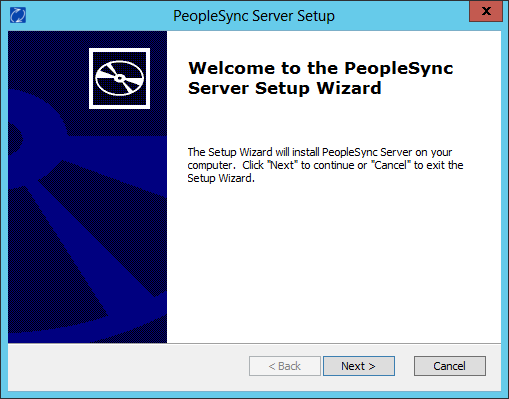
-
Select the installation folder.
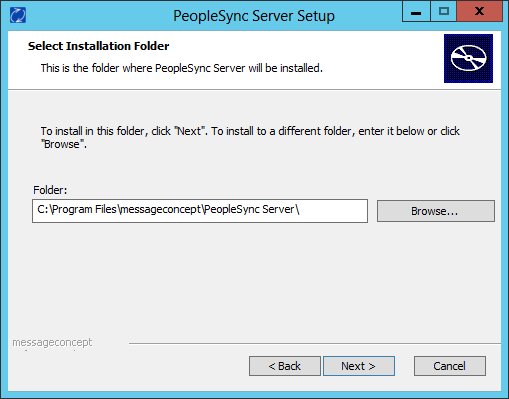
-
Enter the SQL Server computer and instance name, database name, as well as the SQL Server login psweb and corresponding password you created in section 4.2.1
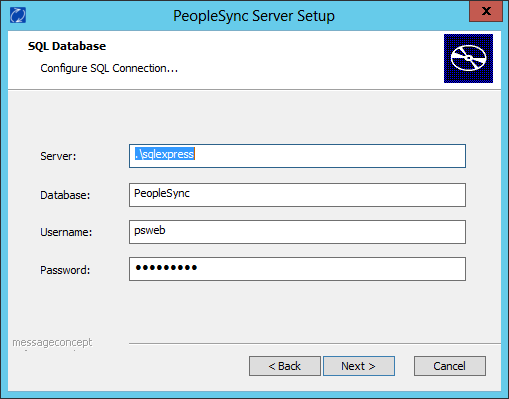
-
Start the PeopleSync Server installation.
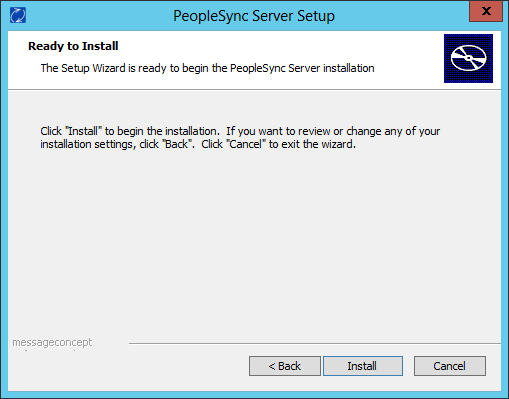
After installation has finished, please proceed to 4.2.3 Configuring Hostname and SSL to configure the hostname and SSL encryption in IIS.
Configuring Hostname and SSL
The recommended practice for the website’s URL is to use a dedicated hostname like https://peoplesync.example.com. Alternatively, a dedicated port as in https://example.com:9443 can be used.
For security reasons, you must configure HTTPS on the PeopleSync Frontend’s IIS website. Starting with iOS 12, it is also no longer possible to authenticate over an unencrypted connection.
To make it easier for you to evaluate PeopleSync, the PeopleSync Frontend Installer creates a self-signed certificate on your server. It is named:
“PeopleSync on <HostName> - Replace Me with a valid cert”
PeopleSync will then be available via HTTPS on ports 443 and 8843. These ports are the default ports for Android and iOS.
Attention: For production use, it is imperative to replace the self-signed certificate with a certificate issued by a trusted CA.
The following is unsafe and unsupported:
- To use self-signed certificates in production.
- To let CardDAV clients connect via HTTP.
For information on how to install a certificate, please see: https://docs.microsoft.com/en-us/iis/manage/configuring-security/how-to-set-up-ssl-on-iis.