
The installer needs to be run with an account that is both a local administrator and an administrator of the SQL Server.
-
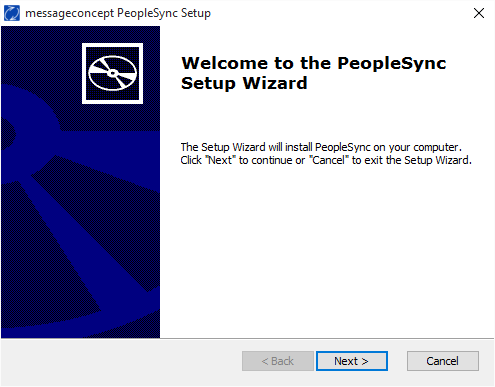
Start the PeopleSync Backend Installer.
-
Accept the end user license agreement.
-
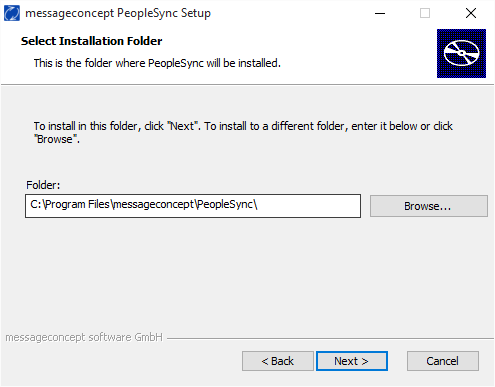
Select the installation folder.
-
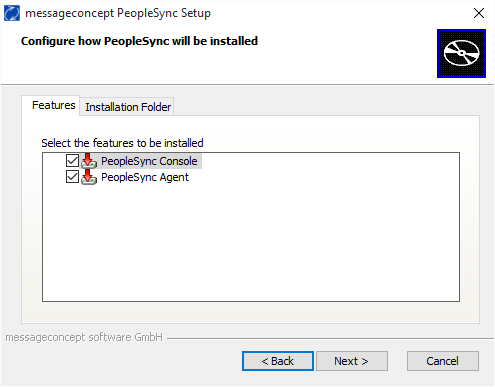
Choose which components to install. If you choose to install the PeopleSync Agent, the console will automatically be selected.
-
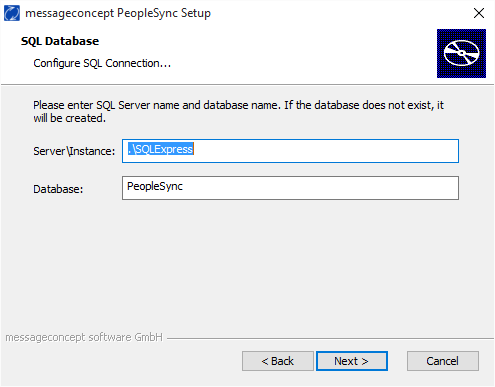
Enter the database connection. The database will be created by the installer.
If you are connecting to the default instance of SQL Server, only the server's name needs to be entered.
-
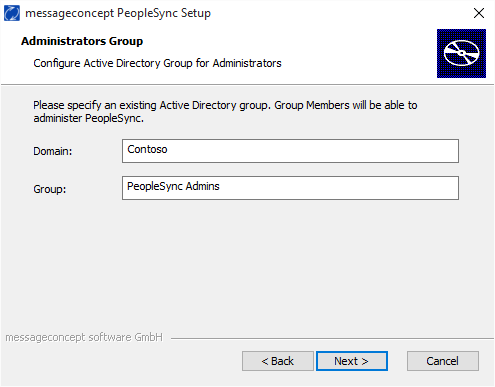
Enter the name of an existing Active Directory or local security group whose members will be allowed to use the PeopleSync Console. It is recommended to create a new group in Active Directory or locally. Please create the group before proceeding; otherwise PeopleSync will not work properly.
-
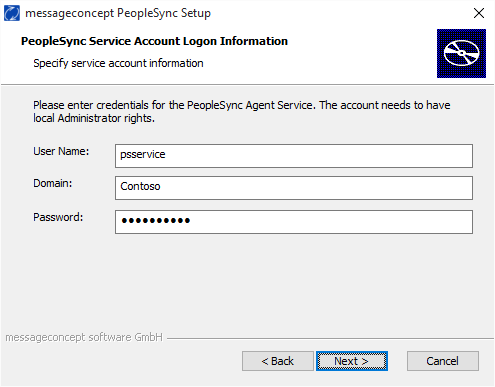
Enter credentials for PeopleSync Agent's service account. The service account must be a domain account that is a member of the server's local administrators group. Note that the account shouldn't have domain administrator rights.
-
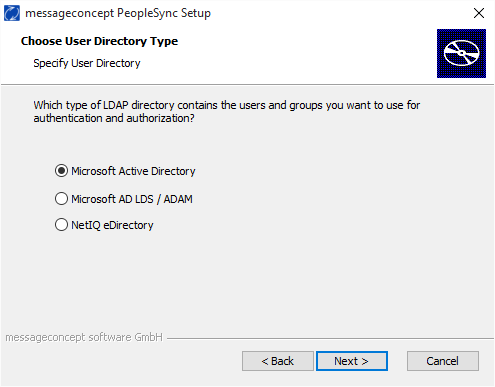
Choose the type of LDAP directory you would like to use.
-
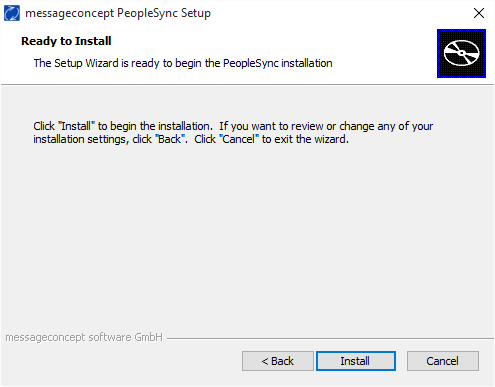
Start the installation.
-
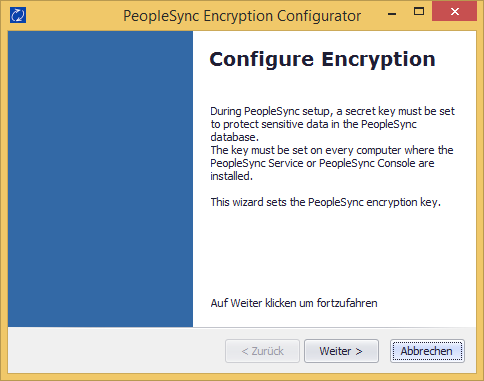
After installation has finished, a password must be set which will be used by PeopleSync to encrypt and decrypt sensitive configuration data. Please note the password you chose and enter the same password on all systems where you install either PeopleSync Console or Agent.
The password is set with PeopleSync Encryption Configurator, which will be automatically launched by the setup.
-
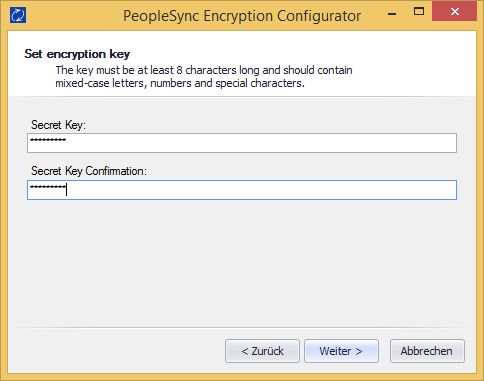
Enter an encryption key. It must be at least 8 characters long and should contain mixed-case letters, numbers and special characters.
-
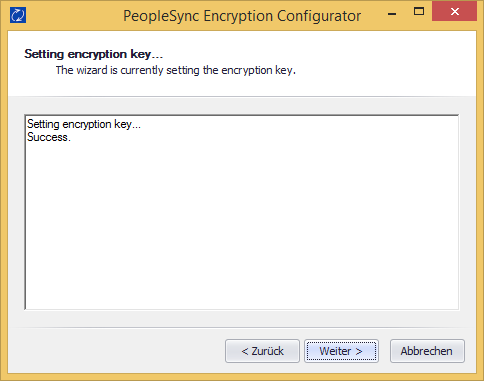
In this step, the PeopleSync Encryption Configurator will check if the encryption key can be used to encrypt and decrypt data on the system. The Output should be as shown below.
After setup has finished, please proceed with frontend server installation.
Attention: Please check, if the encryption key generation has been successful! In case of a failure run the PeopleSync Encryption Configurator again with elevated admin permissions.