
Installing the PeopleSync Frontend
The automatic installation process is the fastest way to install PeopleSync Server. It automatically configures IIS and PHP for PeopleSync. It will add the necessary Windows Features to run IIS and will install and configure PHP.
The automatic installation process can be run on a blank Microsoft Windows Server. No further preparation is necessary, apart from installation of .NET Framework 3.5. Although no Windows features are removed, it is not recommended to use this process on a server where other IIS applications are already in use.
To perform an automatic installation, complete the following steps:
-
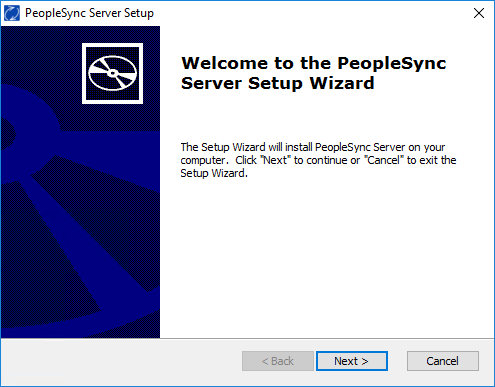
Start PeopleSync Frontend Setup.
-
Accept the license agreement
-
Select the installation folder.
-
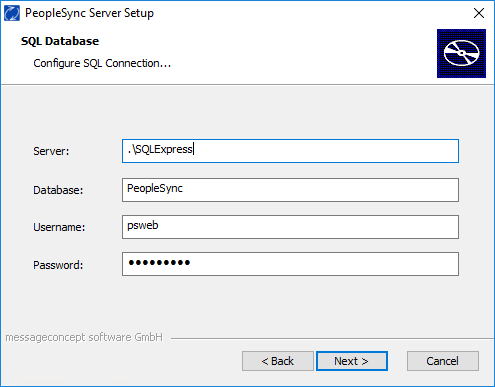
Enter the SQL Server “.\SQLExpress”, database name PeopleSync, as well as the SQL Server login psweb and corresponding password you created in section 2.4
-
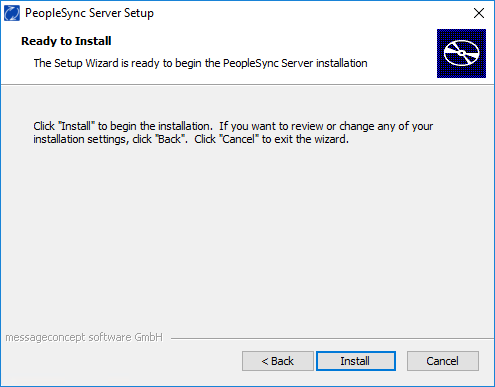
Start the PeopleSync Server installation.
After installation has finished, it is recommended to configure SSL as described in chapter 4.2.4 of the PeopleSync Setup and Configuration Guide.
Configuring HTTPS on the Frontend Server
For security reasons, you must configure HTTPS on the PeopleSync Frontend’s IIS website. Starting with iOS 12, it is also no longer possible to authenticate over an unencrypted connection.
To make it easier for you to evaluate PeopleSync, the PeopleSync Frontend Installer creates a self-signed certificate on your server. It is named:
“PeopleSync on <HostName> - Replace Me with a valid cert”
PeopleSync will then be available via HTTPS on ports 443 and 8843. These ports are the default ports for Android and iOS.
Attention: For production use, it is imperative to replace the self-signed certificate with a certificate issued by a trusted CA.
The following is unsafe and unsupported:
- To use self-signed certificates in production.
- To let CardDAV clients connect via HTTP.
For information on how to install a certificate, please see: https://docs.microsoft.com/en-us/iis/manage/configuring-security/how-to-set-up-ssl-on-iis