
This article explains how to enable debug logging for the following agents:
-
LDAP agent
-
SharePoint agent
-
Microsoft CRM agent
-
Salesforce agent
📘 Instructions
-
Log in to PeopleSync Console
-
Open the agent you want to enable debug logging for.
-
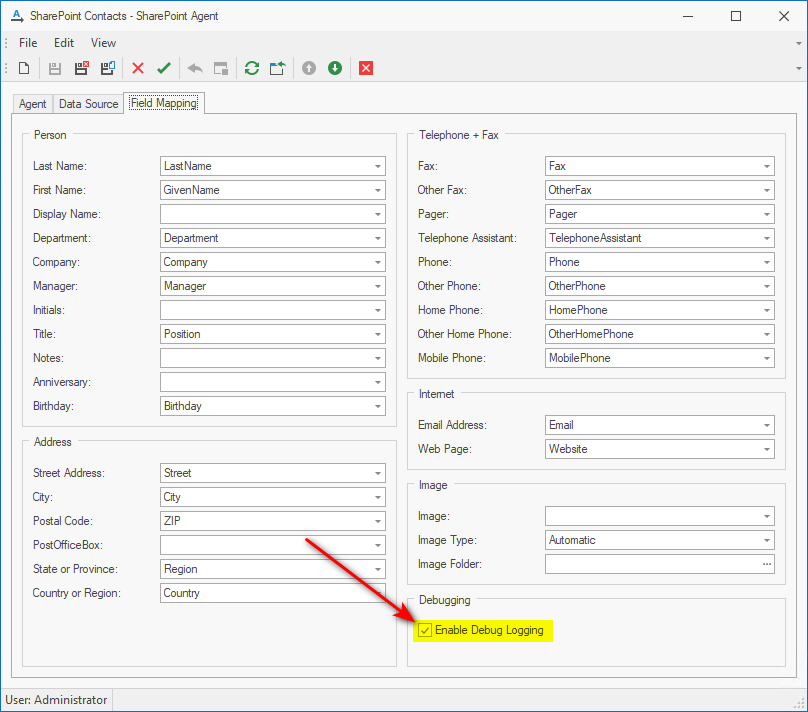
Go to the “Field Mapping” tab and select “Enable Debug Logging”.
-
Save and close the agent.
-
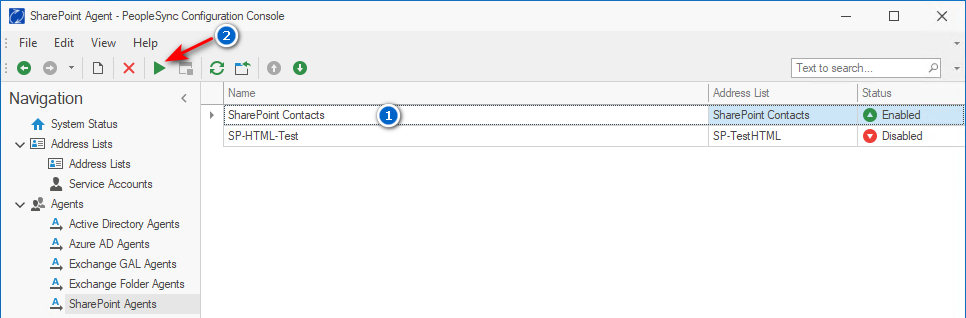
Run the agent by selecting it and then clicking on the “Play” button in the toolbar.
-
Wait for the agent to finish running (see Log > Backend Log).
-
Open Windows Explorer and go to
C:\Users\<Name of PeopleSync Service User>\AppData\Local\Temp. -
There fill be a log file named
PS_Agent_WF_*.log. Copy this log and send it to messageconcept support if instructed to do so.
The log file contains sensitive and/or personal data.
This may include, but may not limited to: service account name, server name, personal data (contacts).
-
Disable debug logging by deselecting “Enable Debug Logging” in the agent.